

Extract PDF images
PDF to Images - Pull embedded images out of PDFs while keeping files private.
Extract product photos, scanned images, figures, charts, and visual assets from PDFs without uploading the document to a website.
Works 100% offline on both Windows and Mac.
All conversions happen locally on your computer. No uploads, no subscriptions, and no background syncing.
PDF → Images
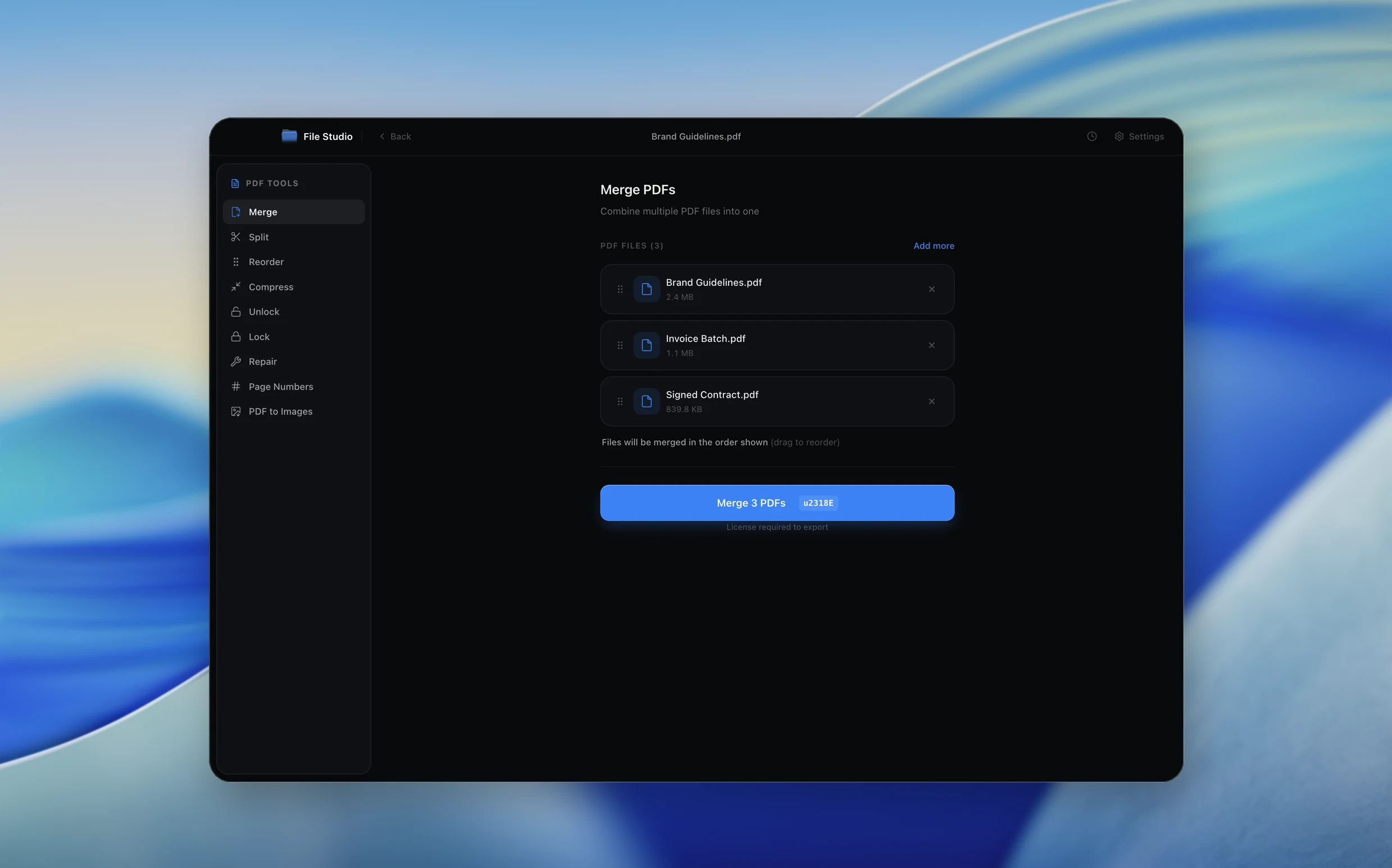
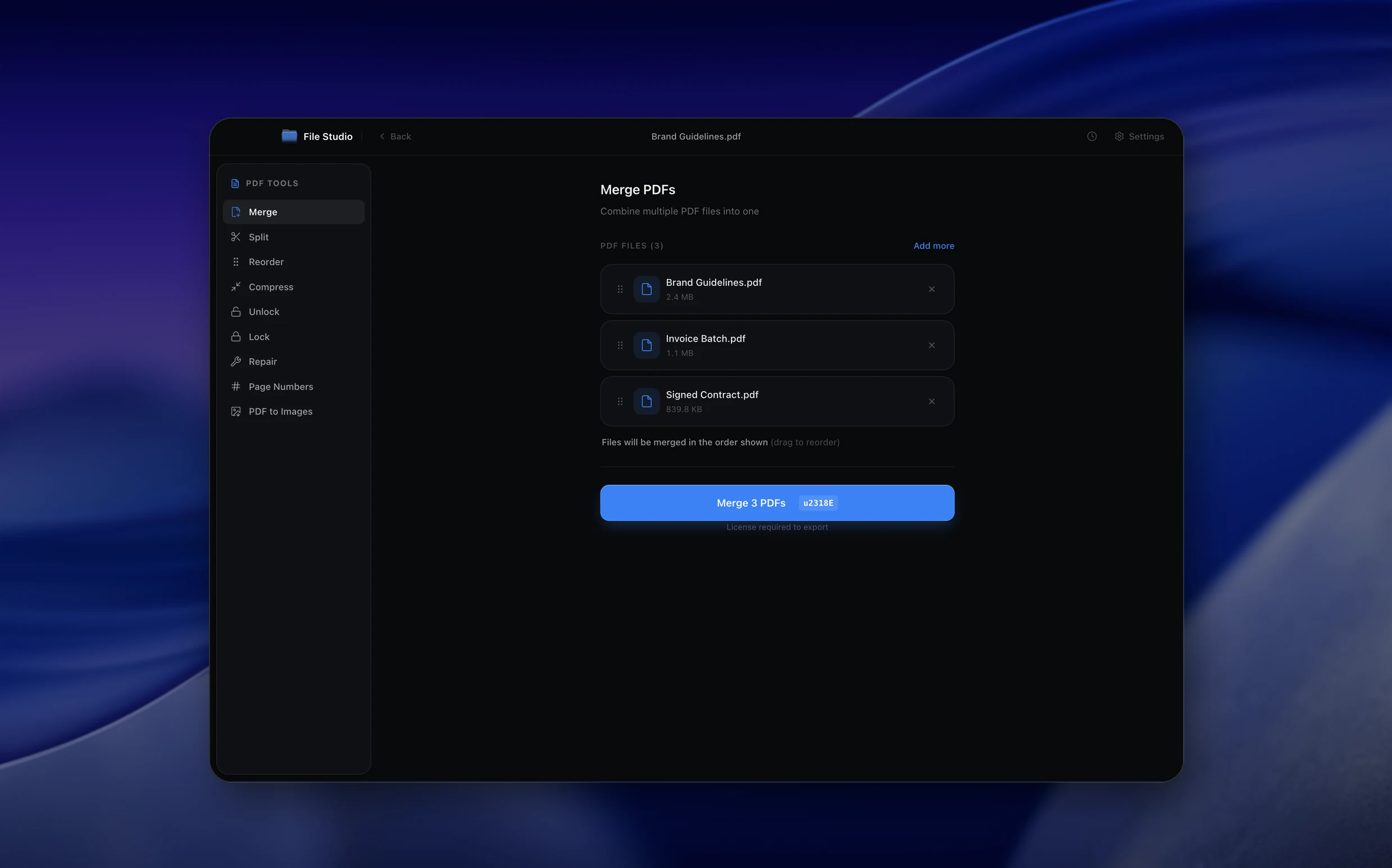
Real File Studio interface, shown in light and dark mode.
How it works
Convert PDF to Images in four simple steps.
The flow mirrors the main File Studio experience: install the app, drop in your files, pick the right tool, and export clean, ready-to-share output. All without sending anything to the cloud.
Install File Studio
Download the app, move it to Applications, and open it. No sign-ups or accounts required.
Add your PDF files
Drag-and-drop your pdf files into the window or click to browse from disk.
Choose PDF → Images
Pick the dedicated tool, then adjust resolution, quality, and page range until the preview feels right.
Export & keep working
Select an output folder and run the conversion. Your originals stay untouched on your device.
Best practices for cleaner results
- ·Group related files into folders before converting so your output stays organized and easy to archive.
- ·Use higher resolution presets when you know the result will be printed, zoomed in, or reused in design tools.
- ·Keep an unedited copy of your original PDF files for audits, record-keeping, or compliance workflows.
- ·Combine this tool with other File Studio actions like compress, merge, or split to streamline entire document pipelines.
Why File Studio
Built for trustworthy, everyday PDF to Images work.
You get precise control over the output, predictable file names, and a private workflow that keeps sensitive documents on your own machine.
Features tuned for this conversion
- ·Local extraction for sensitive PDFs.
- ·Batch-friendly output naming.
- ·Pairs with PDF to JPG/PNG when you need page-level exports instead.
Why use File Studio for this conversion?
- ·Extract embedded images from reports, scans, manuals, and presentations.
- ·Save output locally with predictable file names.
- ·Avoid uploading PDFs that contain private or client information.
Real-world ways people use it
- ·Recover product photos from a supplier PDF.
- ·Extract charts from a report for internal presentations.
- ·Pull scanned pages or figures from archived documents.
Pricing
Simple, fair pricing.
All tools included. No hidden fees. Processing stays on your device.
Yearly
For short-term projects.
- 1 year of updates
- Image, PDF, SVG, and spreadsheet tools
- Works on Mac & Windows
- All processing done on device
Lifetime
One purchase. Keep it forever.
- Unlimited conversions forever
- 1 year of major updates
- Image, PDF, SVG, and spreadsheet tools
- Watch Folders & Automation
- macOS Notch Drop Zone
- Works on Mac & Windows
Team & Bulk Pricing
Lifetime seats with volume discounts. More seats, bigger discount.
15
lifetime seats
You save
$60
15% off the individual price
Enterprise
50+ seats with custom pricing, centralized license management, and priority support.
FAQ
Frequently asked questions
Is this the same as PDF to JPG?→
No. PDF to JPG exports full pages. Extract images pulls embedded images from inside the PDF when available.
Are files uploaded?→
No. Extraction happens locally in File Studio.
Can I use it for scanned PDFs?→
Yes, though scanned pages may be better handled with PDF to JPG or PDF to PNG depending on your goal.
Looking for something else? Explore more offline conversions with File Studio: