

SVG to PDF converter
SVG to PDF - Turn SVG illustrations into print-ready PDFs without any cloud dependency.
SVG files are perfect for the web but tricky to print or email. File Studio converts your vector artwork into high-quality PDFs that retain crisp lines at any zoom level, and the entire process stays on your desktop.
Works 100% offline on both Windows and Mac.
All conversions happen locally on your computer. No uploads, no subscriptions, and no background syncing.
SVG → PDF
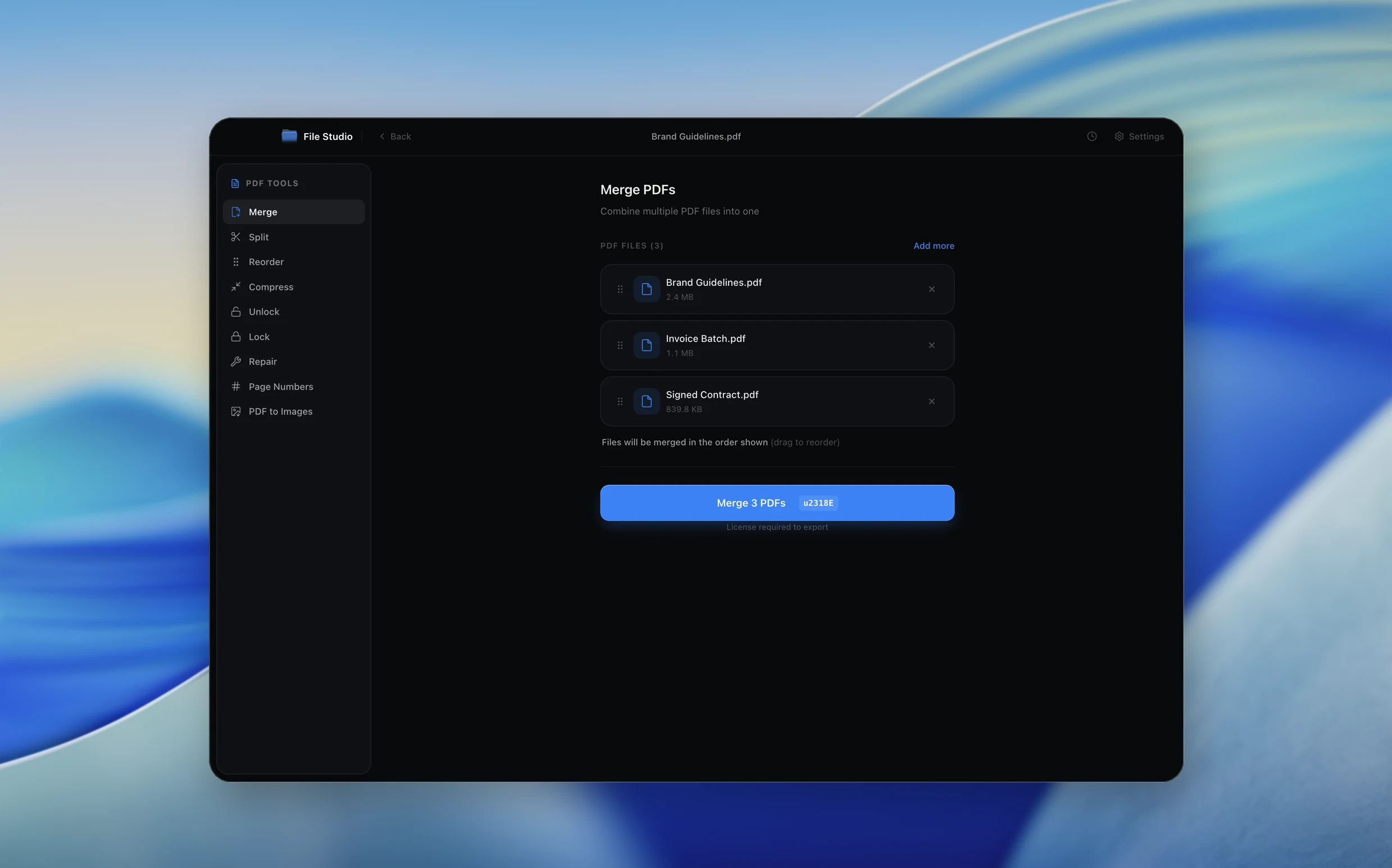
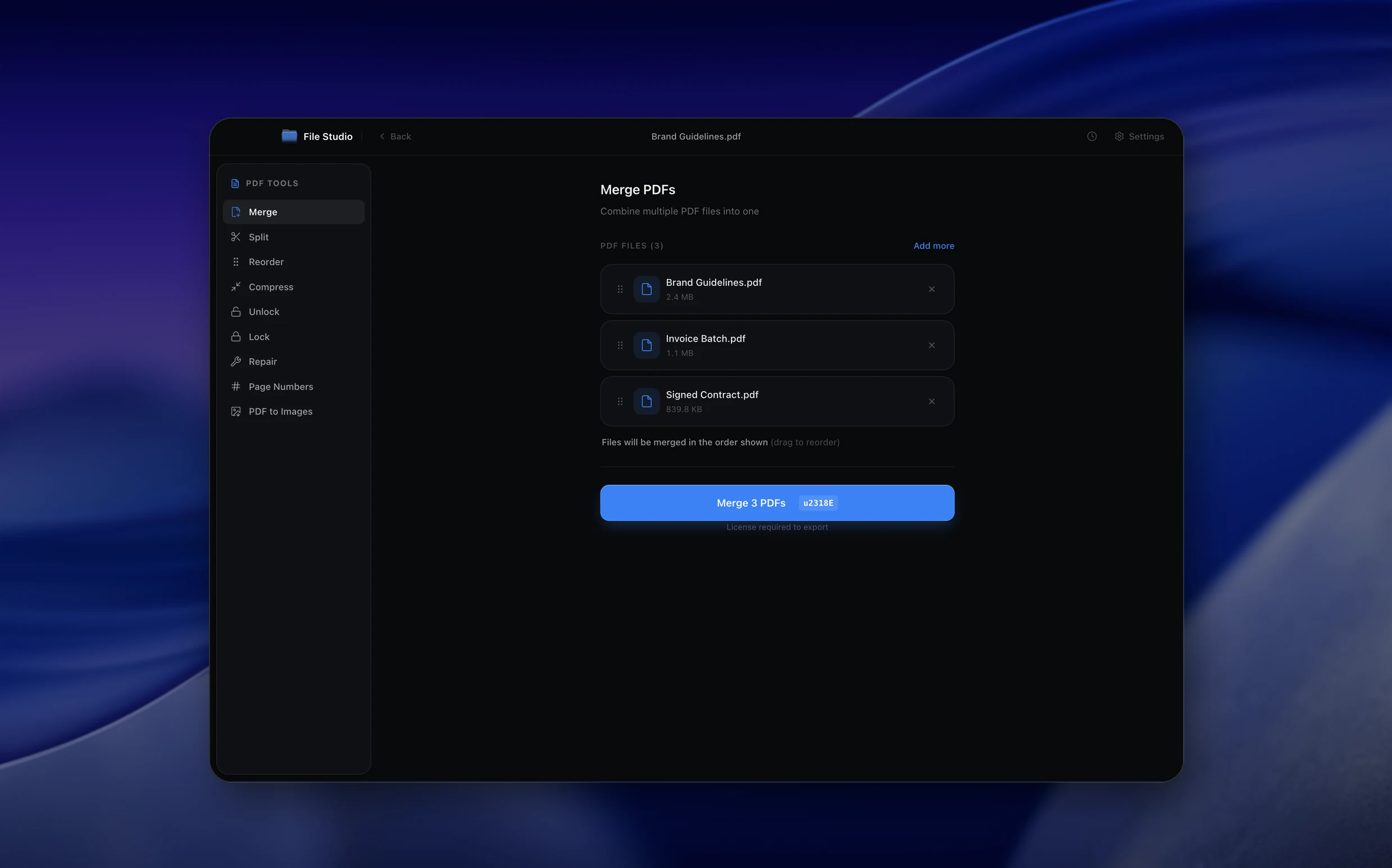
Real File Studio interface, shown in light and dark mode.
Understanding the PDF format for SVG input
PDF (ISO 32000) and SVG (W3C Recommendation) share a common heritage in PostScript-style vector drawing. Both describe images using paths, fills, strokes, gradients, text, and image XObjects. This shared model means an SVG file can be converted to PDF without rasterization, producing a fully scalable vector PDF that prints crisply at any resolution. The conversion involves parsing the SVG XML tree, mapping each element to its PDF content stream equivalent, and resolving CSS styling, transforms, and clipping paths.
Unlike raster image formats, SVG-to-PDF conversion is mathematically lossless when implemented correctly. A line in SVG becomes a line in PDF with the same coordinates, stroke width, and color. Text remains real text (with the original font), gradients map to PDF shading patterns, and clipping paths use PDF's clipping operators. The resulting PDF can be opened in any compliant viewer and printed at any size with no loss of fidelity.
Common reasons to convert SVG to PDF include preparing vector logos and diagrams for print production, generating reports from web-based dashboards (D3.js, Chart.js, Plotly), archiving infographics and technical illustrations, and producing print-ready brochures from web design tools. PDF is the format universally accepted by print providers and document management systems, while SVG remains primarily a web and design format.
How it works
Convert SVG to PDF in four simple steps.
The flow mirrors the main File Studio experience: install the app, drop in your files, pick the right tool, and export clean, ready-to-share output. All without sending anything to the cloud.
Install File Studio
Download the app, move it to Applications, and open it. No sign-ups or accounts required.
Add your SVG files
Drag-and-drop your svg files into the window or click to browse from disk.
Choose SVG → PDF
Pick the dedicated tool, then adjust resolution, quality, and page range until the preview feels right.
Export & keep working
Select an output folder and run the conversion. Your originals stay untouched on your device.
Best practices for cleaner results
- ·Group related files into folders before converting so your output stays organized and easy to archive.
- ·Use higher resolution presets when you know the result will be printed, zoomed in, or reused in design tools.
- ·Keep an unedited copy of your original SVG files for audits, record-keeping, or compliance workflows.
- ·Combine this tool with other File Studio actions like compress, merge, or split to streamline entire document pipelines.
Why File Studio
Built for trustworthy, everyday SVG to PDF work.
You get precise control over the output, predictable file names, and a private workflow that keeps sensitive documents on your own machine.
Features tuned for this conversion
- ·Retain vector paths and curves as native PDF drawing commands.
- ·Support for SVG gradients, clipping paths, and opacity effects.
- ·Configurable page size and margins for professional document layouts.
Why use File Studio for this conversion?
- ·Preserve vector sharpness so artwork prints cleanly at any scale.
- ·Convert complex SVGs with gradients, filters, and embedded fonts.
- ·Keep proprietary design files private with fully offline processing.
Real-world ways people use it
- ·Print SVG logos and brand assets at large format without quality loss.
- ·Share SVG diagrams as universally viewable PDF attachments.
- ·Archive vector illustrations in a format that any colleague can open.
Settings guide
Understanding your conversion options
Font Embedding
Embed all fonts referenced in the SVG to ensure the PDF renders identically on systems that lack the originals. Subset embedding (only the glyphs actually used) is preferred for file size. If a font cannot be embedded for licensing reasons, convert text to outlines as a fallback, accepting the loss of selectability.
Page Size
SVG defines a viewBox or width/height in user units. The converter can map these directly (one user unit equals one PDF point at 72 DPI), scale to fit a standard page size (A4, Letter, A3), or use a custom size. Direct mapping is best for diagrams; standard sizing is required for printing on physical paper.
Color Space
SVG uses sRGB by default. For print output, the converter should perform color conversion to CMYK using a printer-supplied ICC profile (GRACoL 2013 for North American sheetfed, FOGRA51 for European offset). For screen and web use, keep the output in sRGB to avoid unnecessary gamut shifts.
Filter and Effect Rasterization
Some SVG filters (Gaussian blur, color matrix, complex compositing) have no direct PDF equivalent. The converter rasterizes the affected regions at a configurable DPI (typically 300 for print). Set the rasterization DPI based on the final output medium to balance fidelity and file size.
Background Color
SVG has no inherent background; the document is transparent unless a rectangle is explicitly drawn. The converter can add a white (or custom color) background to the PDF page or preserve transparency. Print workflows usually require an opaque background.
Industry standards and requirements
For print production, SVG-derived PDFs must satisfy PDF/X-1a (ISO 15930-1) or PDF/X-4 (ISO 15930-7) compliance. PDF/X-1a requires CMYK color, embedded fonts, and no transparency or layers. PDF/X-4 permits live transparency and ICC-tagged color, which is more forgiving for modern design workflows. Most commercial printers accept either standard, but digital presses prefer PDF/X-4 for color accuracy.
In data visualization and reporting, web-based charts (D3.js, Highcharts, Plotly) often need to be exported to PDF for inclusion in business reports and academic papers. The recommended approach is to render the chart as SVG in the browser and convert to PDF on the server using a headless renderer (Puppeteer, Playwright, librsvg). This preserves vector accuracy and produces files suitable for high-resolution printing.
For technical documentation and engineering drawings, SVG is increasingly used as an interchange format between CAD tools and publishing systems. ISO 14289 (PDF/UA, PDF for accessibility) recommends preserving vector source where possible because screen readers and zoom tools can navigate vector content more flexibly than rasterized equivalents. Tagging the PDF with structure information (figures, captions, alt text) is required for compliance.
Troubleshooting
Common issues and how to fix them
Text appears in a wrong font in the PDF→
The font referenced in the SVG was not available on the system performing the conversion. Install the required font, or ensure the SVG uses an @font-face rule with an embedded font that the converter can extract. As a last resort, convert text to outlines before exporting.
Filter effects look pixelated→
The converter rasterized filter regions at low DPI. Increase the rasterization DPI setting to 300 or higher. For web-only output, 150 DPI is acceptable. Be aware that some complex filters (feMorphology, feTurbulence) cannot be expressed in PDF and must be rasterized.
Output PDF has wrong dimensions→
The SVG viewBox or width/height attributes were misinterpreted. Verify the SVG declares its dimensions in absolute units (pt, mm, in) rather than percentages. Set the converter's page size mapping to match the SVG units exactly.
Embedded raster images appear blurry→
The SVG contained a low-resolution raster (PNG, JPG) inside an image element. The converter cannot improve the source resolution. Replace the embedded image with a higher-resolution version before converting, or accept the visual quality of the original.
Pricing
Simple, fair pricing.
All tools included. No hidden fees. Processing stays on your device.
Yearly
For short-term projects.
- 1 year of updates
- Image, PDF, SVG, and spreadsheet tools
- Works on Mac & Windows
- All processing done on device
Lifetime
One purchase. Keep it forever.
- Unlimited conversions forever
- 1 year of major updates
- Image, PDF, SVG, and spreadsheet tools
- Watch Folders & Automation
- macOS Notch Drop Zone
- Works on Mac & Windows
Team & Bulk Pricing
Lifetime seats with volume discounts. More seats, bigger discount.
15
lifetime seats
You save
$60
15% off the individual price
Enterprise
50+ seats with custom pricing, centralized license management, and priority support.
FAQ
Frequently asked questions
Will my SVG vectors stay sharp in the PDF?→
Yes. File Studio converts SVG paths into native PDF vector commands, so artwork remains resolution-independent and sharp at any zoom or print size.
Does this handle SVGs with embedded images?→
Yes. Embedded raster images within your SVG (such as base64-encoded PNGs) are preserved in the PDF. Vector elements remain as vectors.
Can I set a custom page size for the PDF?→
Absolutely. You can match the SVG's native dimensions, fit it to standard paper sizes like A4 or Letter, or specify custom dimensions in millimeters or inches.
What about SVG animations?→
PDF does not support animation, so animated SVG elements are rendered as their initial state. The visual appearance is captured faithfully as a static frame.
Is the conversion private and offline?→
Yes. File Studio processes SVG files entirely on your local machine. No server communication takes place, so your designs and brand assets stay confidential.
Looking for something else? Explore more offline conversions with File Studio: