

Watch Folders
Any File to Automated Output - Automate your repetitive file tasks like magic.
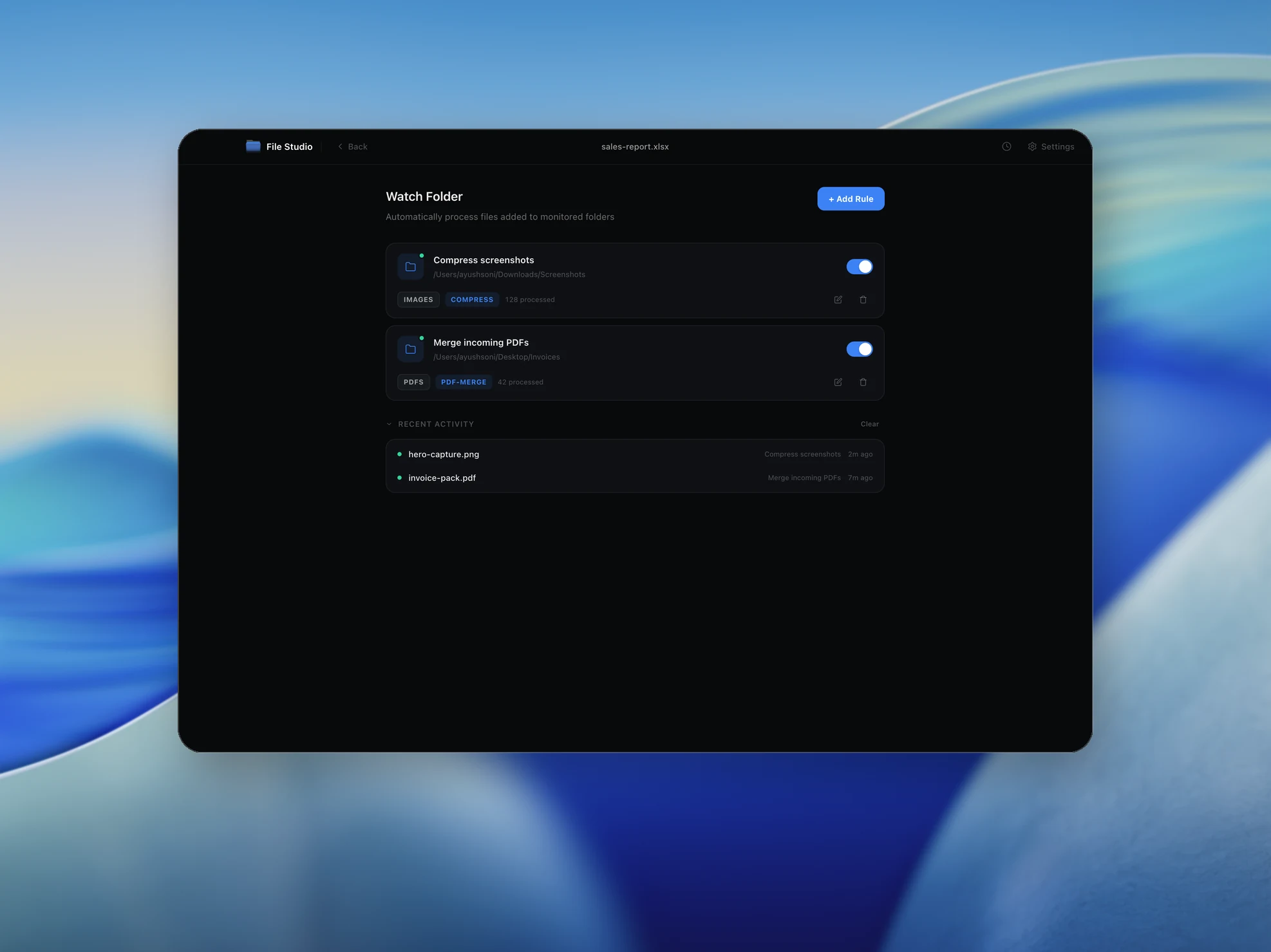
Set up a Watch Folder, configure a rule, and let File Studio do the rest. Whenever you save a file to that folder, it's instantly converted, resized, or compressed automatically in the background.
Works 100% offline on both Windows and Mac.
All conversions happen locally on your computer. No uploads, no subscriptions, and no background syncing.
Any File → Automated Output
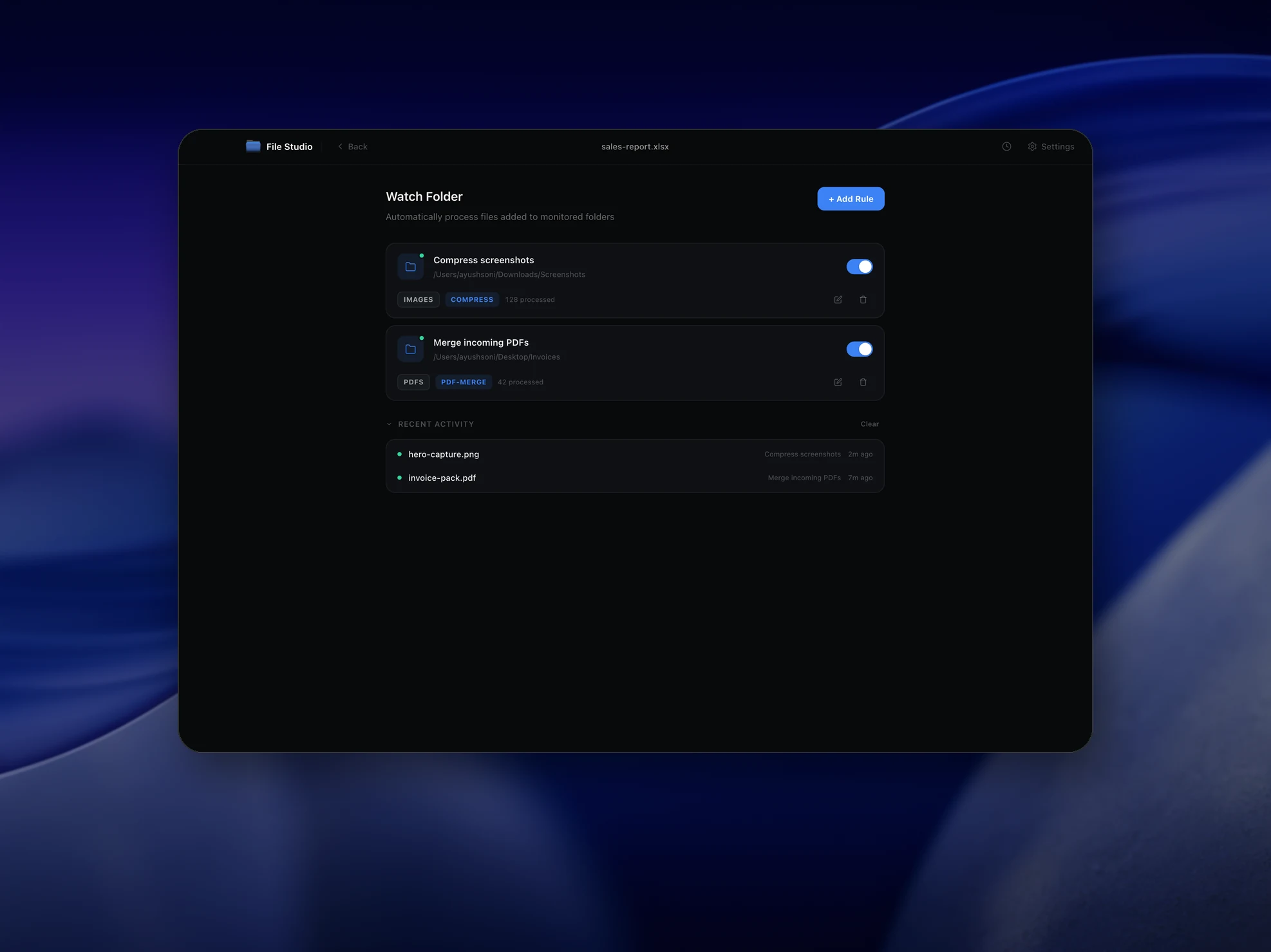
Real File Studio interface, shown in light and dark mode.
Understanding watch folders
A watch folder (also called a hot folder) is a directory monitored by an application for new or changed files. When a file appears in the watched directory, the application picks it up automatically and runs a predefined action: convert it, compress it, route it to another folder, or send it to a printer. The pattern dates back to early prepress and printing workflows in the 1990s and remains the simplest way to automate file processing without writing code.
Modern watch folder implementations rely on operating system APIs that report file system changes. macOS uses FSEvents, Windows uses ReadDirectoryChangesW, and Linux uses inotify. These APIs let an application register interest in a directory and receive callbacks when files are created, modified, deleted, or renamed. The application waits for the file to finish writing (detected by checking that the file size has stopped changing), then processes it according to the configured rule.
Watch folders are useful whenever the same operation must run on a stream of incoming files: converting RAW photos as they come off a camera, optimizing screenshots dropped onto the desktop, generating thumbnails for uploaded assets, or transcoding video files dumped into a shared drive. They eliminate the need to manually open each file and click a convert button, and they scale to thousands of files per day with no additional effort.
How it works
Convert Any File to Automated Output in four simple steps.
The flow mirrors the main File Studio experience: install the app, drop in your files, pick the right tool, and export clean, ready-to-share output. All without sending anything to the cloud.
Install File Studio
Download the app, move it to Applications, and open it. No sign-ups or accounts required.
Add your Any File files
Drag-and-drop your any file files into the window or click to browse from disk.
Choose Any File → Automated Output
Pick the dedicated tool, then adjust resolution, quality, and page range until the preview feels right.
Export & keep working
Select an output folder and run the conversion. Your originals stay untouched on your device.
Best practices for cleaner results
- ·Group related files into folders before converting so your output stays organized and easy to archive.
- ·Use higher resolution presets when you know the result will be printed, zoomed in, or reused in design tools.
- ·Keep an unedited copy of your original Any File files for audits, record-keeping, or compliance workflows.
- ·Combine this tool with other File Studio actions like compress, merge, or split to streamline entire document pipelines.
Why File Studio
Built for trustworthy, everyday Any File to Automated Output work.
You get precise control over the output, predictable file names, and a private workflow that keeps sensitive documents on your own machine.
Features tuned for this conversion
- ·Trigger any File Studio operation (convert, compress, resize, etc.).
- ·Set multiple output rules for a single input folder.
- ·Runs quietly in the background without interrupting your workflow.
Why use File Studio for this conversion?
- ·Automate conversions just by saving a file to a folder.
- ·Chain multiple operations together seamlessly.
- ·Runs entirely locally with zero cloud dependencies.
Real-world ways people use it
- ·Automatically optimize and resize images saved to a specific project folder.
- ·Instantly convert incoming HEIC photos to JPG for quick sharing.
- ·Auto-compress large PDFs as soon as they are generated by other apps.
Settings guide
Understanding your conversion options
Watched Directory
The folder being monitored. Can be a local path, an external drive, a network share (SMB, AFP, NFS), or a synced cloud folder (Dropbox, iCloud, OneDrive). Network and cloud folders may have higher latency and unreliable change notifications, so polling is a fallback for those locations.
File Pattern
A glob or regex that filters which files trigger the action. Examples: '*.jpg' processes only JPEG files, '**/*.png' includes nested directories, '!~$*' excludes Office temp files. Specific patterns prevent the watcher from reacting to system files and partial uploads.
Stability Wait
How long the watcher waits after the last detected change before processing the file. Necessary because large files are often written in chunks, and processing a half-written file fails or produces corrupt output. Defaults are 1 to 5 seconds; increase to 30 seconds for large video files or slow network drives.
Action After Processing
What to do with the source file after the action completes successfully: leave in place, move to a 'processed' subfolder, move to trash, or delete permanently. Move-to-processed is the safest default because it preserves originals while preventing reprocessing on the next watcher start.
Output Destination
Where the processed files go. Can be a sibling folder, a subfolder of the watched directory, or a completely different path. Use a separate output destination to avoid the watcher reprocessing its own output, which would cause an infinite loop.
Industry standards and requirements
Prepress and commercial printing workflows have used watch folders since the 1990s, originally with PostScript and later PDF. Software like Enfocus Switch, Heidelberg Prinect, and Agfa Apogee implements watch folders as the central automation primitive, with hundreds of files flowing through preflight, color conversion, imposition, and proofing stages. ISO 12647 print quality standards are enforced by these workflows on every file that passes through the system.
Broadcast and media production rely on watch folders for ingest. Avid, Adobe Premiere, and Blackmagic DaVinci Resolve all support hot folder monitoring to automatically transcode incoming footage into editing-friendly proxy formats. The standard pattern is camera files drop into an ingest folder, the watcher transcodes them to ProRes or DNxHR, and the proxies appear in the editor's media bin without manual import.
DevOps and continuous integration pipelines treat watch folders as a precursor to event-driven automation. While modern workflows use webhooks and message queues for production, file-based watching remains common for legacy systems and on-premise integration with desktop software that lacks a programmable API. Tools like Hazel (macOS) and File Juggler (Windows) provide GUI-based watch folder configuration for non-developer users.
Troubleshooting
Common issues and how to fix them
Files are processed before they finish uploading→
Increase the stability wait time. The watcher is firing on the first write notification before the upload completes. Set the wait to a value larger than the longest expected write duration. For very large files, watch for a sentinel file (like 'upload-complete.txt') instead of the file itself.
Some new files are not detected→
OS file system event APIs can drop notifications under heavy load or on certain network protocols. Enable polling as a backup: the watcher periodically scans the directory and processes any files not seen since the last scan. Polling interval of 30 to 60 seconds is a reasonable safety net.
Processing creates an infinite loop→
The output is being written into the watched folder, triggering another round of processing. Send output to a separate destination, exclude the output pattern from the watcher's filter, or move the source file out of the watched folder before processing.
Watcher stops working after sleep or reboot→
The application must register itself to launch on login or run as a background service. On macOS, this is done with a Launch Agent in ~/Library/LaunchAgents. On Windows, use the Task Scheduler or a Windows Service. Verify the watcher process is running after the system wakes from sleep.
Pricing
Simple, fair pricing.
All tools included. No hidden fees. Processing stays on your device.
Yearly
For short-term projects.
- 1 year of updates
- Image, PDF, SVG, and spreadsheet tools
- Works on Mac & Windows
- All processing done on device
Lifetime
One purchase. Keep it forever.
- Unlimited conversions forever
- 1 year of major updates
- Image, PDF, SVG, and spreadsheet tools
- Watch Folders & Automation
- macOS Notch Drop Zone
- Works on Mac & Windows
Team & Bulk Pricing
Lifetime seats with volume discounts. More seats, bigger discount.
15
lifetime seats
You save
$60
15% off the individual price
Enterprise
50+ seats with custom pricing, centralized license management, and priority support.
FAQ
Frequently asked questions
What is a Watch Folder?→
A Watch Folder is a directory on your computer that File Studio monitors. When a new file is added, File Studio automatically processes it according to the rules you've set.
Can I set up multiple Watch Folders?→
Yes. You can configure as many Watch Folders as you need, each with its own specific automation rules and output destinations.
Does the File Studio app need to be open?→
File Studio needs to be running (it can be minimized to your menu bar or system tray) for Watch Folders to actively process new files.
What kinds of tasks can I automate?→
Virtually any task File Studio supports: converting images, resizing photos, compressing PDFs, minifying SVGs, and more.
Will it delete my original files after processing?→
By default, File Studio keeps your original files safe and places the processed files in a designated output folder. You can configure it to move originals to the trash if preferred.
Is there a limit to how many files it can process?→
No artificial limits. Watch Folders can handle high-volume workflows, processing files as quickly as your computer's hardware allows.
Looking for something else? Explore more offline conversions with File Studio: