

PDF page numbering
PDF to PDF - Add professional page numbers to any PDF without a cloud editor.
Printed manuals, reports, and bound documents need page numbers, but adding them in most PDF editors is surprisingly difficult. File Studio stamps clean, customizable page numbers onto every page of your PDF, all processed locally.
Works 100% offline on both Windows and Mac.
All conversions happen locally on your computer. No uploads, no subscriptions, and no background syncing.
PDF → PDF
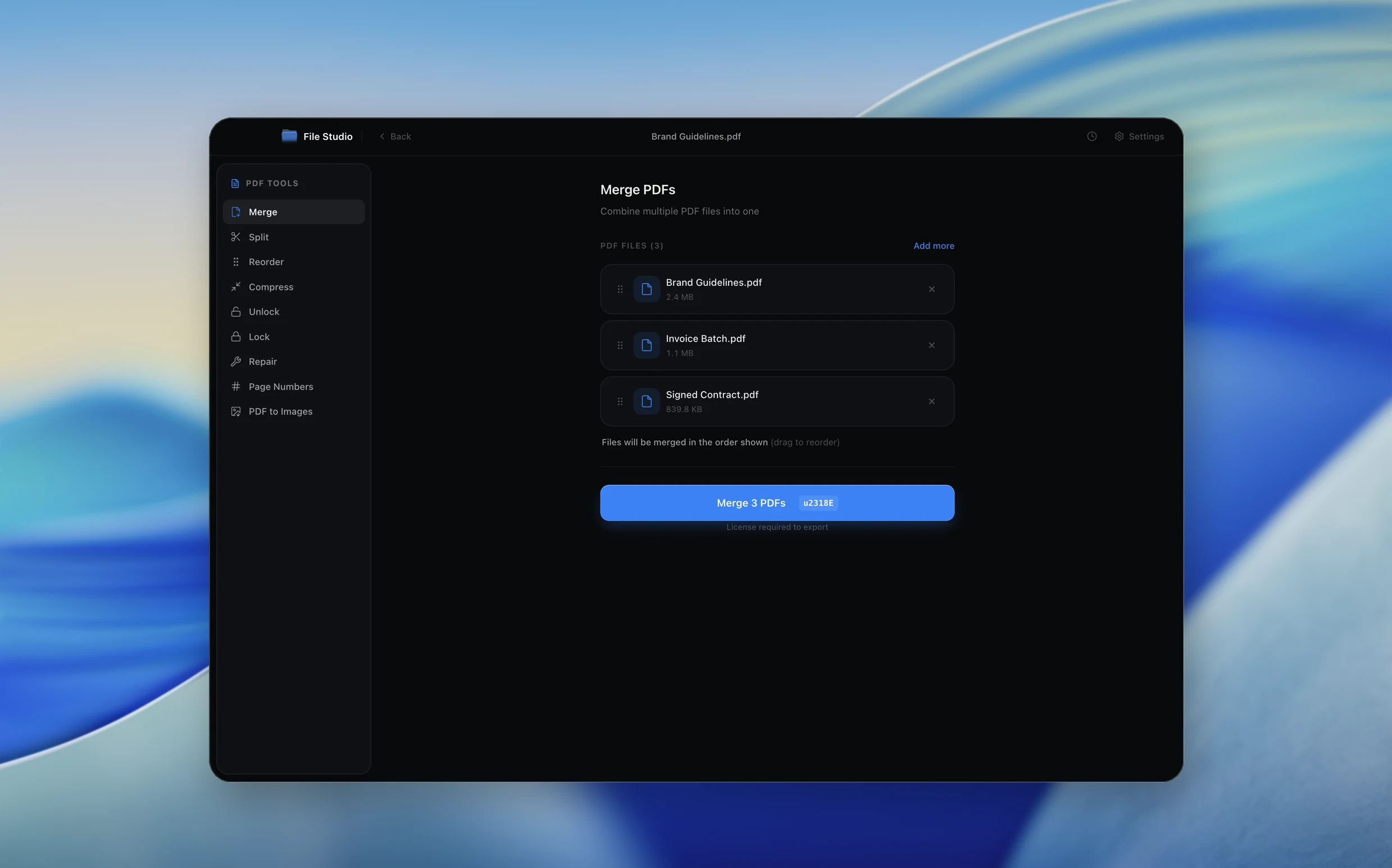
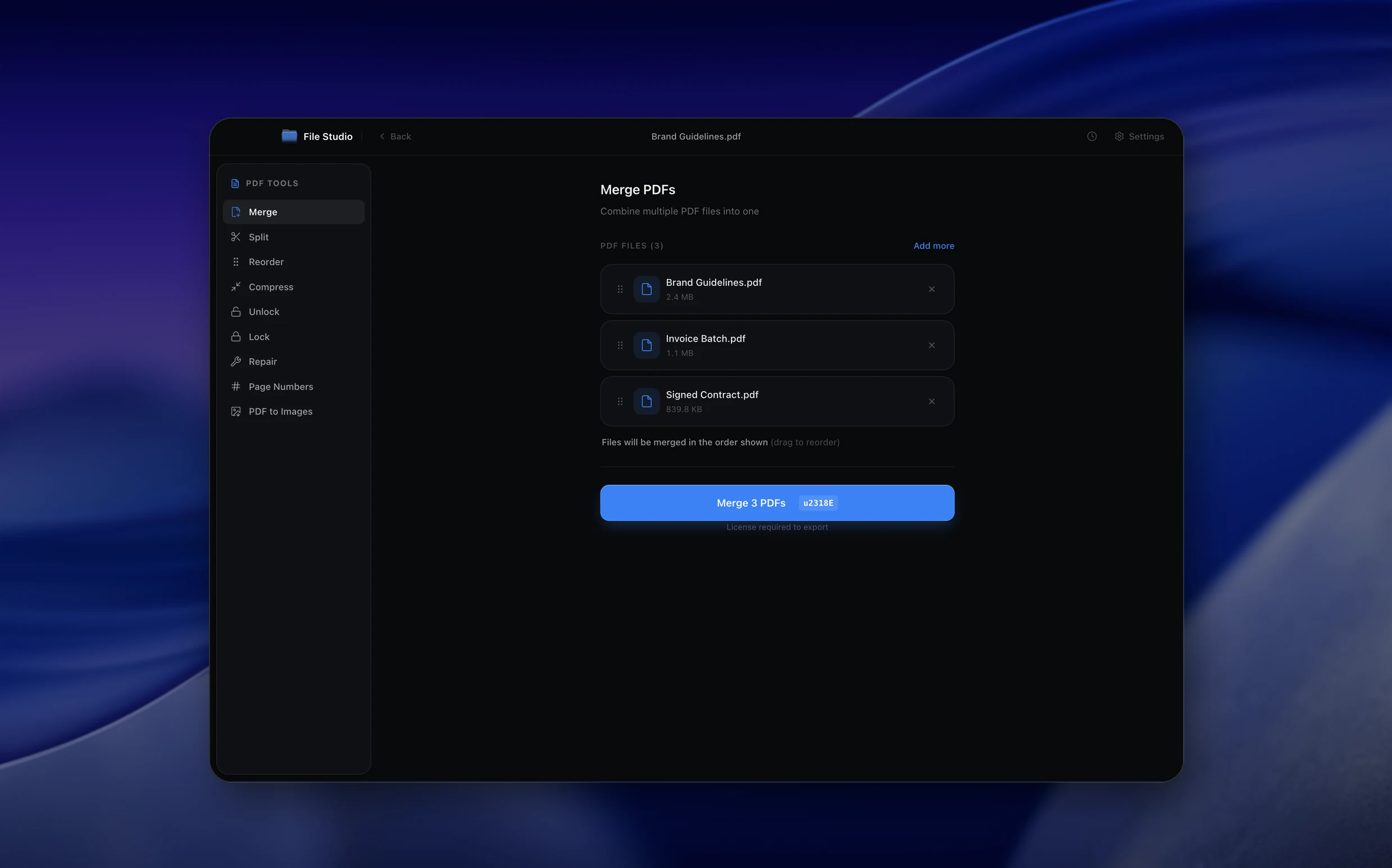
Real File Studio interface, shown in light and dark mode.
Understanding PDF page numbering
Page numbers in a PDF are not part of the underlying document structure the way they are in a word processor. A PDF stores pages as discrete objects in a fixed sequence, and any visible page number is simply a text object drawn onto the page content stream. That distinction matters because removing or changing page numbers later requires editing the content stream of each affected page, not toggling a setting in document properties.
When you add page numbers to an existing PDF, the operation overlays a new text object onto each page using a chosen font, position, and starting index. Most tools accomplish this by appending the text drawing commands to each page's content stream and registering the font in the page's resource dictionary if it is not already present. Because the original page content is preserved beneath the overlay, the operation is reversible if you keep the source file.
Page numbering is governed by ISO 32000 (the PDF specification), which defines a separate concept called PageLabels. PageLabels let you assign logical labels (like roman numerals for front matter or appendix prefixes) that appear in the navigation pane independent of the visible printed numbers. A complete numbering workflow often combines visible overlays for printing with PageLabels for navigation, so a reader sees consistent numbering whether they look at the page or the bookmarks panel.
How it works
Convert PDF to PDF in four simple steps.
The flow mirrors the main File Studio experience: install the app, drop in your files, pick the right tool, and export clean, ready-to-share output. All without sending anything to the cloud.
Install File Studio
Download the app, move it to Applications, and open it. No sign-ups or accounts required.
Add your PDF files
Drag-and-drop your pdf files into the window or click to browse from disk.
Choose PDF → PDF
Pick the dedicated tool, then adjust resolution, quality, and page range until the preview feels right.
Export & keep working
Select an output folder and run the conversion. Your originals stay untouched on your device.
Best practices for cleaner results
- ·Group related files into folders before converting so your output stays organized and easy to archive.
- ·Use higher resolution presets when you know the result will be printed, zoomed in, or reused in design tools.
- ·Keep an unedited copy of your original PDF files for audits, record-keeping, or compliance workflows.
- ·Combine this tool with other File Studio actions like compress, merge, or split to streamline entire document pipelines.
Why File Studio
Built for trustworthy, everyday PDF to PDF work.
You get precise control over the output, predictable file names, and a private workflow that keeps sensitive documents on your own machine.
Features tuned for this conversion
- ·Flexible positioning: top/bottom combined with left/center/right alignment.
- ·Number format options: Arabic (1, 2, 3), Roman (i, ii, iii), or alphabetic (A, B, C).
- ·Configurable starting page number and option to skip numbering on the first page.
Why use File Studio for this conversion?
- ·Place page numbers at the top or bottom, left, center, or right.
- ·Customize font, size, color, and number format (1, i, A, etc.).
- ·Process entirely offline for confidential reports and manuscripts.
Real-world ways people use it
- ·Add page numbers to a manuscript before sending it to a publisher or reviewer.
- ·Number the pages of a merged PDF report for easy reference in meetings.
- ·Stamp page numbers on a printed manual's PDF before sending to the print shop.
Settings guide
Understanding your conversion options
Position
Page numbers can be placed in any of nine standard positions: top left, top center, top right, middle left, middle center, middle right, bottom left, bottom center, or bottom right. Bottom center and bottom right are the most common for body documents. Choose top corners for legal pleadings and bottom for books and reports.
Starting Number
The first numbered page does not have to be page 1 of the file. For documents with a cover and table of contents, set the starting number to 1 on the first body page and skip the front matter, or use roman numerals (i, ii, iii) for the front matter and arabic numerals for the body.
Format String
Format strings let you mix the page number with static text and the total page count. Common patterns include 'Page {n}', '{n} of {total}', 'Section A {n}', and '- {n} -'. Some tools support tokens for chapter or section names if the PDF contains structured bookmarks.
Font and Size
Choose a font that is embedded or available system-wide so the numbering renders identically on every viewer. Standard 14 PDF fonts (Helvetica, Times, Courier) do not require embedding. Sizes between 9 and 11 points are typical for body documents and 8 points for legal documents that need extra margin space.
Margin Offset
The offset controls how far the number sits from the page edge. A 0.5 inch (36 point) offset is standard. Documents intended for binding usually need a wider inside margin, so the offset for verso (left) and recto (right) pages may differ in duplex layouts.
Industry standards and requirements
Legal filings in U.S. federal courts follow Federal Rule of Appellate Procedure 32 and local PACER rules, which require sequential page numbers visible at the bottom of each page. Many courts require the format 'Page X of Y' centered or right-aligned in the bottom margin, and some appellate courts require color-coded page numbers for record on appeal. Always confirm the local rule before numbering a court filing because requirements vary between districts.
Academic publishers commonly require front matter in lowercase roman numerals (i, ii, iii) and body content in arabic numerals starting at 1, matching the PDF/A archival standard guidance for journal article submission. The Chicago Manual of Style and APA both treat front matter and body separately, and indexes built from the numbered PDF must match the visible page labels exactly.
For book production, the ISO 6357 page numbering convention places odd numbers on recto (right-hand) pages and even numbers on verso (left-hand) pages. Chapter openings traditionally suppress the visible number while still consuming a page in the count. Print on demand services like IngramSpark and KDP enforce minimum margin requirements (usually 0.375 inch inside and 0.25 inch outside) that any numbering overlay must respect.
Troubleshooting
Common issues and how to fix them
Page numbers overlap existing content→
Increase the margin offset or move the numbering to a different position. If the source PDF was generated from a word processor with full bleed margins, there may be no clear space for an overlay. Reduce the font size or place the number inside an opaque background rectangle to maintain readability.
Numbers do not appear in some viewers→
This usually means the chosen font was not embedded. Switch to one of the 14 standard PDF fonts (Helvetica is the safest) or enable font embedding in the export settings. Check the file in Preview, Adobe Acrobat, and at least one browser viewer to confirm consistent rendering.
Page numbering starts on the wrong page→
Set the starting page index explicitly. Most tools use a zero-indexed or one-indexed offset to control which physical page receives the first label. Pair this with a separate skip range so numbering does not appear on covers or blank dividers.
Front matter and body need different numbering styles→
Run the numbering operation twice with different page ranges and formats: roman numerals (i, ii, iii) for the front matter and arabic numerals starting at 1 for the body. Set the PDF PageLabels metadata to match so the navigation pane reflects the printed numbers.
Pricing
Simple, fair pricing.
All tools included. No hidden fees. Processing stays on your device.
Yearly
For short-term projects.
- 1 year of updates
- Image, PDF, SVG, and spreadsheet tools
- Works on Mac & Windows
- All processing done on device
Lifetime
One purchase. Keep it forever.
- Unlimited conversions forever
- 1 year of major updates
- Image, PDF, SVG, and spreadsheet tools
- Watch Folders & Automation
- macOS Notch Drop Zone
- Works on Mac & Windows
Team & Bulk Pricing
Lifetime seats with volume discounts. More seats, bigger discount.
15
lifetime seats
You save
$60
15% off the individual price
Enterprise
50+ seats with custom pricing, centralized license management, and priority support.
FAQ
Frequently asked questions
Can I skip the first page (cover page)?→
Yes. File Studio lets you specify a starting page for numbering, so you can skip the cover or title page and begin numbering from page 2 or any page you choose.
Can I customize the font and position?→
Yes. You can choose the font family, size, color, and position (top/bottom, left/center/right). You can also add prefix or suffix text like 'Page X of Y'.
Does adding page numbers change my original PDF?→
File Studio creates a new PDF with page numbers added. Your original document remains unchanged.
Can I use Roman numerals?→
Yes. File Studio supports Arabic numbers (1, 2, 3), lowercase Roman numerals (i, ii, iii), uppercase Roman numerals (I, II, III), and alphabetic labels (A, B, C).
Is this offline?→
Yes. All page numbering is done locally on your Mac or Windows machine. No documents are uploaded to any server.
Can I add page numbers to a large document?→
Yes. File Studio handles documents of any length, from a few pages to hundreds of pages, applying consistent page numbering throughout.
Looking for something else? Explore more offline conversions with File Studio: