

WebP to PDF converter
WebP to PDF - Bundle web-ready WebP images into polished PDF documents on your desktop.
WebP is everywhere on the modern web, but sharing those images as formal documents often means converting to PDF. File Studio takes one or many WebP files and produces a clean, paginated PDF without touching the cloud.
Works 100% offline on both Windows and Mac.
All conversions happen locally on your computer. No uploads, no subscriptions, and no background syncing.
WebP → PDF
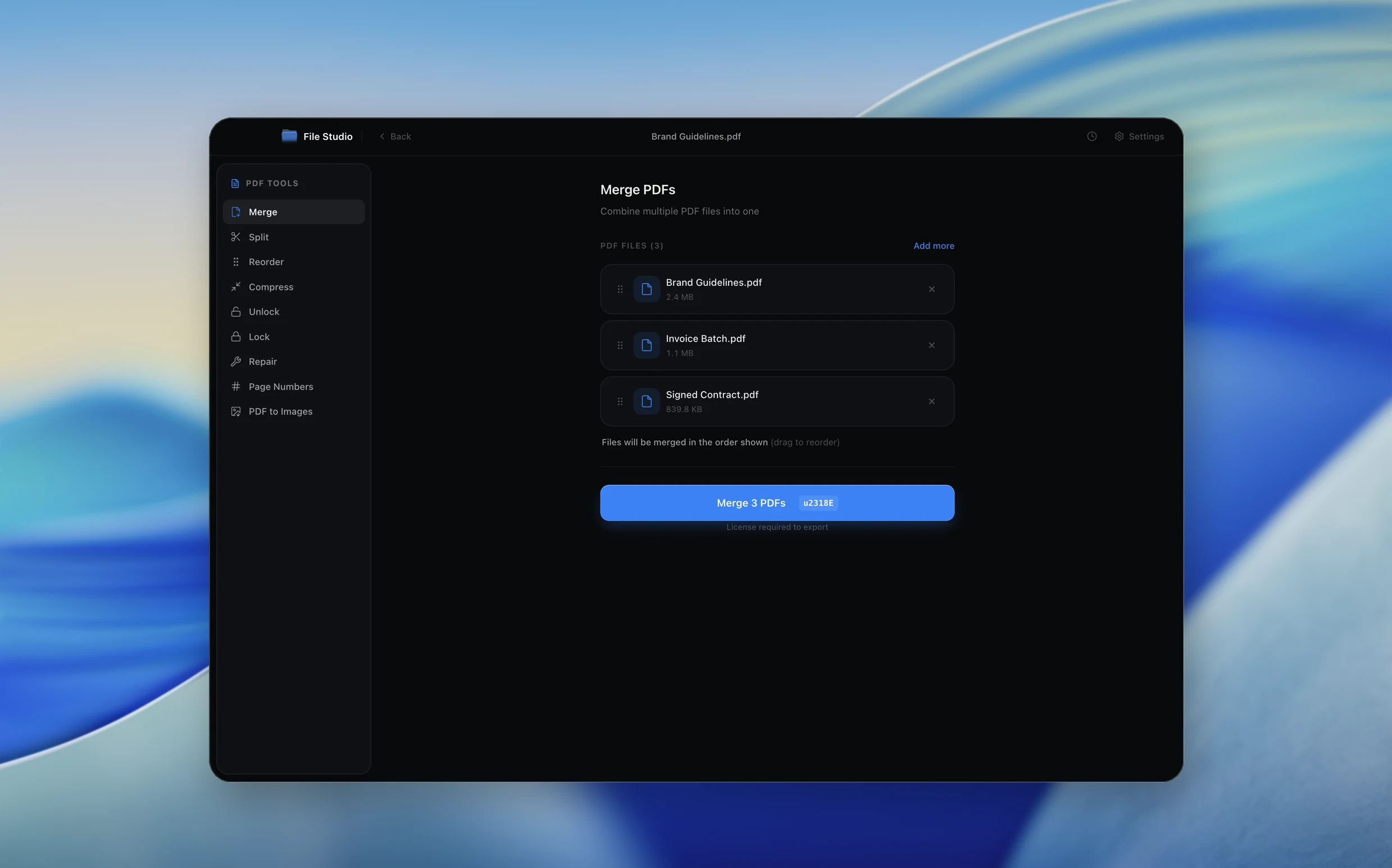
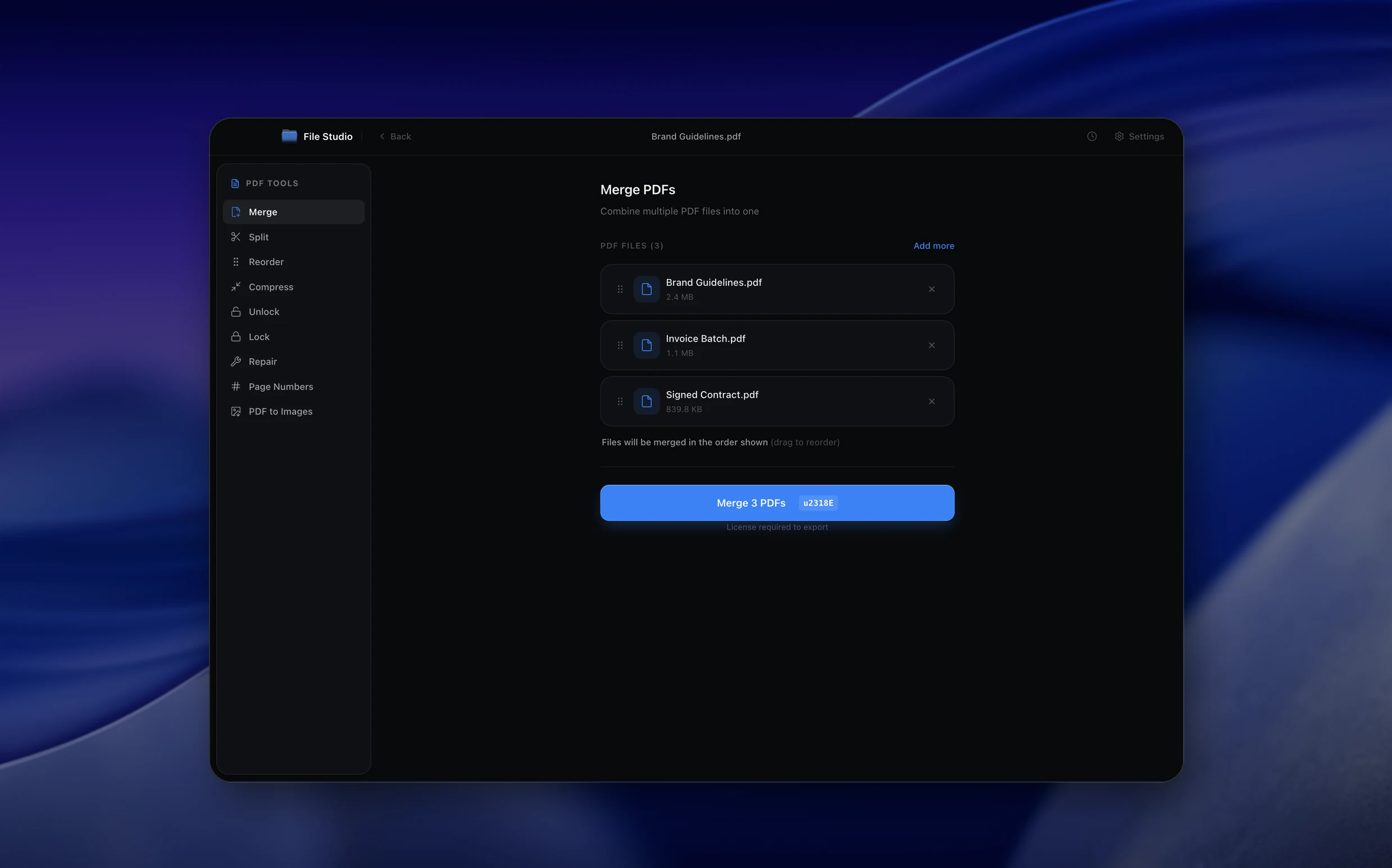
Real File Studio interface, shown in light and dark mode.
Understanding the PDF format for WebP input
PDF (ISO 32000) is a fixed-layout document format that can embed raster images, vector graphics, and text inside a single file. When the input is a WebP image, the converter must first decode the WebP content into a raw pixel buffer or compatible compressed stream, then wrap it in a PDF page. WebP itself was introduced by Google in 2010 as a modern replacement for JPG and PNG, using the VP8 (lossy) and VP8L (lossless) codecs from the WebM video project.
PDF does not have a native WebP decoder, so WebP images cannot be embedded byte-for-byte the way JPGs can. The converter typically decodes the WebP to RGB (or RGBA for transparent images) and re-encodes it as either FlateDecode (lossless DEFLATE) or DCTDecode (JPEG). Choosing the right re-encoding affects both file size and visual quality. Lossless WebP should be re-encoded as FlateDecode to preserve quality. Lossy WebP can be re-encoded as JPEG with minimal additional loss because both are DCT-based.
WebP-to-PDF conversion is increasingly common because WebP has become the default image format for many websites, screenshot tools, and mobile apps. Designers, marketers, and researchers often need to compile WebP screenshots into shareable PDFs for review, archival, or print. PDF is the only format universally accepted by document management systems, e-signature platforms, and print services, which makes the conversion essential even though WebP itself is more efficient on the web.
How it works
Convert WebP to PDF in four simple steps.
The flow mirrors the main File Studio experience: install the app, drop in your files, pick the right tool, and export clean, ready-to-share output. All without sending anything to the cloud.
Install File Studio
Download the app, move it to Applications, and open it. No sign-ups or accounts required.
Add your WebP files
Drag-and-drop your webp files into the window or click to browse from disk.
Choose WebP → PDF
Pick the dedicated tool, then adjust resolution, quality, and page range until the preview feels right.
Export & keep working
Select an output folder and run the conversion. Your originals stay untouched on your device.
Best practices for cleaner results
- ·Group related files into folders before converting so your output stays organized and easy to archive.
- ·Use higher resolution presets when you know the result will be printed, zoomed in, or reused in design tools.
- ·Keep an unedited copy of your original WebP files for audits, record-keeping, or compliance workflows.
- ·Combine this tool with other File Studio actions like compress, merge, or split to streamline entire document pipelines.
Why File Studio
Built for trustworthy, everyday WebP to PDF work.
You get precise control over the output, predictable file names, and a private workflow that keeps sensitive documents on your own machine.
Features tuned for this conversion
- ·Support for both lossy and lossless WebP input, including alpha transparency.
- ·Drag-and-drop page ordering before PDF export.
- ·Adjustable page margins and orientation for professional layouts.
Why use File Studio for this conversion?
- ·Combine multiple WebP images into a single organized PDF.
- ·Preserve both lossy and lossless WebP quality in the final document.
- ·Convert locally so downloaded web assets stay private on your device.
Real-world ways people use it
- ·Compile product screenshots saved as WebP into a client-ready PDF report.
- ·Archive web-downloaded infographics in a single portable PDF.
- ·Create printable lookbooks from WebP images pulled from an e-commerce site.
Settings guide
Understanding your conversion options
Re-encoding Strategy
Lossless WebP should use FlateDecode inside the PDF to preserve every pixel. Lossy WebP can be decoded and re-encoded as JPEG (DCTDecode) at quality 90 with negligible additional loss. Avoid converting lossless WebP to JPEG unless file size is critical, because the conversion introduces irreversible compression artifacts.
Transparency Handling
WebP supports an 8-bit alpha channel. PDF preserves transparency through soft masks (SMask). Enable alpha channel preservation if the WebP has transparent regions and the destination viewers support it. Otherwise, flatten against a chosen background color (white is the safest default).
Page Size Calculation
Decide whether each WebP fits on a standard page (A4, Letter) or generates a custom-sized page that exactly matches the image dimensions. Custom sizing is best for screenshots and digital artwork. Standard sizing is required for printing and for documents that need consistent page geometry.
DPI Assumption
WebP files do not always carry physical resolution metadata. The converter must assume a DPI to compute page dimensions. 96 DPI matches typical screen captures, 150 DPI is suitable for office printing, and 300 DPI is the print industry minimum. Pick the value that matches the intended use.
Color Profile Handling
WebP can carry an embedded ICC profile. If present, the converter should pass it through to the PDF as an ICCBased color space so downstream tools render colors accurately. If absent, assume sRGB. Never re-tag or strip profiles silently because doing so causes hue shifts.
Industry standards and requirements
For web archiving, the Internet Archive and similar repositories accept WebP-derived PDFs as long as the embedded images preserve the original color profile and resolution. PDF/A-3 (ISO 19005-3) is suitable because it permits a wide range of compression schemes inside the embedded image streams. Including the original WebP as an attached file inside the PDF/A-3 container preserves the source for future re-encoding if needed.
Print production rarely accepts WebP directly, but a PDF generated from WebP at 300 DPI in CMYK is acceptable to most commercial printers. The converter should perform color space conversion using a printer-supplied ICC profile (typically GRACoL 2013 for North American sheetfed presses or FOGRA51 for European offset). Without profile-driven conversion, WebP's wide-gamut RGB content can produce unprintable colors.
For screenshot-based documentation (technical writing, bug reports, UX research), the de facto standard is sRGB at 144 DPI, which matches the doubled-density screenshots produced by Retina-class displays. Storing the PDF as web-optimized (linearized) form allows the first page to render quickly when shared over chat or email, which is important for distributed teams reviewing visual changes.
Troubleshooting
Common issues and how to fix them
Converter reports unsupported format→
The converter may not have libwebp linked. WebP support has only been universal since around 2018. Update to a recent version of the converter or install libwebp on the host system. As a workaround, pre-convert the WebP to PNG using a tool that supports it.
Output PDF is much larger than the source WebP→
WebP is more compression-efficient than the encoders available inside PDF, so some size growth is unavoidable. Minimize the increase by re-encoding lossy WebP as JPEG quality 85 to 90 and lossless WebP as FlateDecode. Avoid using uncompressed image streams.
Animated WebP only shows the first frame→
PDF cannot embed animation, so animated WebP files are reduced to a single frame. Pick the most representative frame manually before conversion or convert each frame to a separate PDF page if all frames need to be preserved.
Transparent areas turn black→
Some viewers do not composite SMask transparency over a page background correctly. Either flatten against white during conversion or test the output in a fully compliant viewer (Adobe Acrobat, Apple Preview, modern Firefox) to confirm the issue is viewer-specific rather than file-specific.
Pricing
Simple, fair pricing.
All tools included. No hidden fees. Processing stays on your device.
Yearly
For short-term projects.
- 1 year of updates
- Image, PDF, SVG, and spreadsheet tools
- Works on Mac & Windows
- All processing done on device
Lifetime
One purchase. Keep it forever.
- Unlimited conversions forever
- 1 year of major updates
- Image, PDF, SVG, and spreadsheet tools
- Watch Folders & Automation
- macOS Notch Drop Zone
- Works on Mac & Windows
Team & Bulk Pricing
Lifetime seats with volume discounts. More seats, bigger discount.
15
lifetime seats
You save
$60
15% off the individual price
Enterprise
50+ seats with custom pricing, centralized license management, and priority support.
FAQ
Frequently asked questions
What is WebP and why would I need to convert it to PDF?→
WebP is a modern image format developed by Google for efficient web delivery. Converting to PDF is useful when you need to share, print, or archive web images in a universally accepted document format.
Does WebP to PDF conversion lose quality?→
File Studio embeds the WebP image data at its original resolution inside the PDF, so there is no additional quality loss during conversion.
Can I merge many WebP files into one PDF?→
Yes. Drop in as many WebP images as you like, reorder them, and File Studio creates a single multi-page PDF from all of them.
Does this handle transparent WebP images?→
Yes. WebP images with alpha transparency are supported. Transparent areas will appear as white in the PDF by default, since PDF viewers render pages on a white background.
Is the conversion offline?→
Completely. File Studio runs everything locally on your Mac or Windows machine, so your images never leave your computer.
Looking for something else? Explore more offline conversions with File Studio: