

SVG to PNG converter
SVG to PNG - Rasterize SVG artwork into crisp PNG images at any resolution you need.
SVG is great for scalable graphics, but sometimes you need a plain PNG for social media, email, or apps that do not support vector input. File Studio renders your SVGs at the exact pixel dimensions you specify, producing sharp PNGs locally on your machine.
Works 100% offline on both Windows and Mac.
All conversions happen locally on your computer. No uploads, no subscriptions, and no background syncing.
SVG → PNG
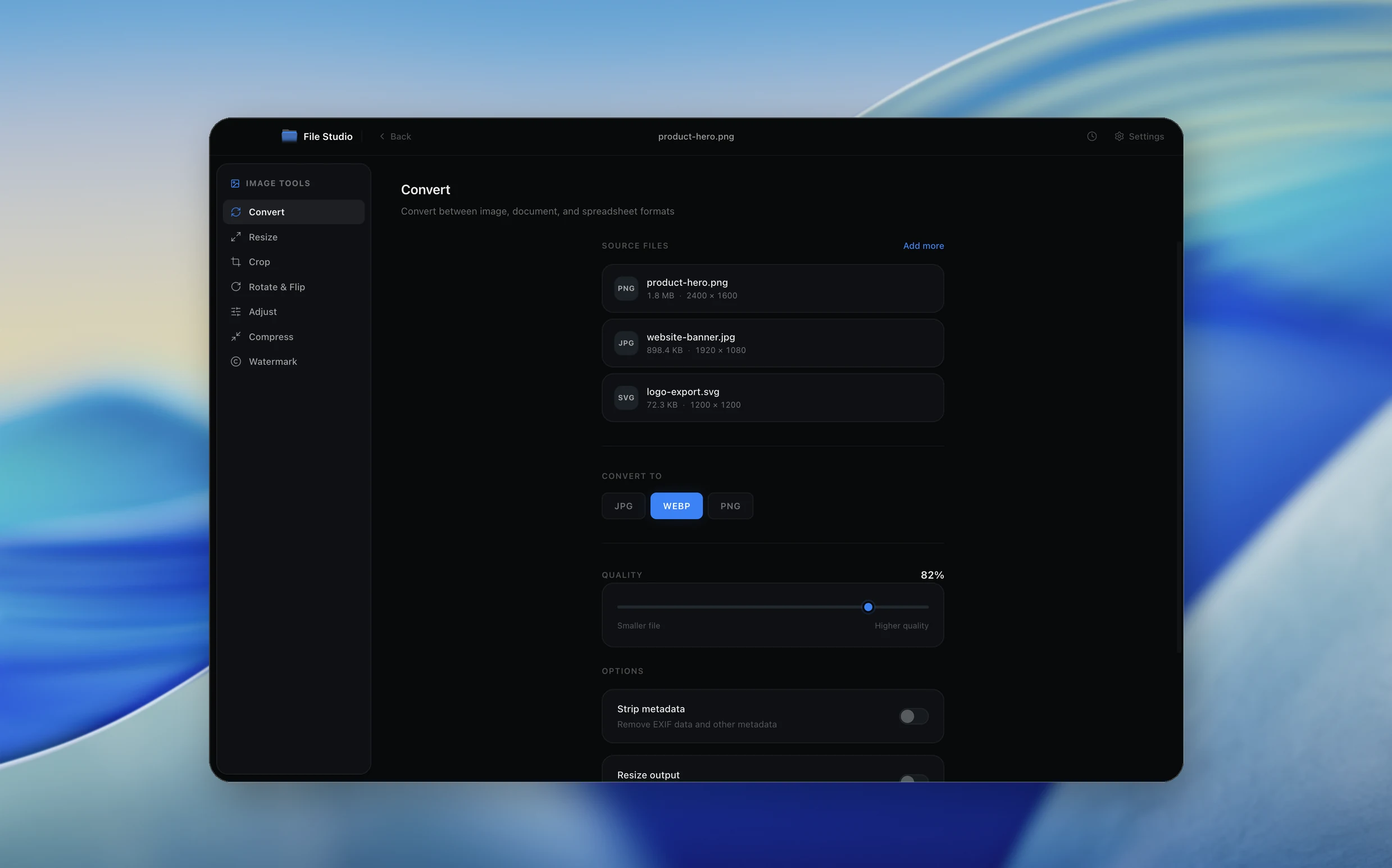
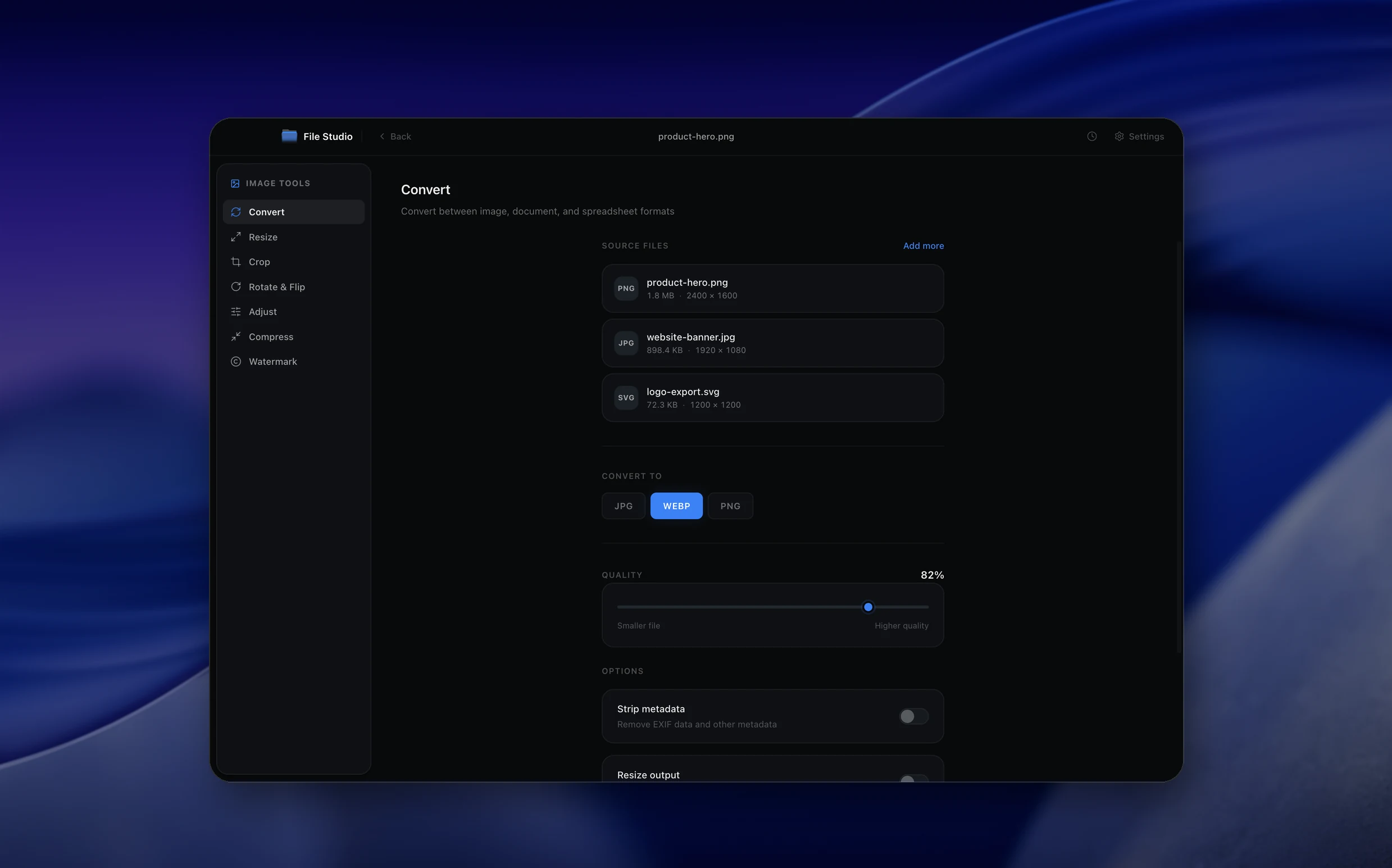
Real File Studio interface, shown in light and dark mode.
Understanding SVG to PNG rasterization
SVG (Scalable Vector Graphics) is an XML-based vector format standardized by the W3C in 2001. It describes images as mathematical primitives such as paths, shapes, gradients, and text, all of which can be rendered at any resolution without loss of detail. PNG, by contrast, is a fixed-resolution raster format that stores explicit pixel values. Converting SVG to PNG is a rasterization operation: a renderer evaluates the vector instructions at a chosen output size and writes the resulting pixel grid to a PNG file.
Because the SVG itself has no inherent resolution, the most important decision during rasterization is the target pixel dimensions. The renderer must also handle anti-aliasing, font substitution if embedded fonts are missing, gradient interpolation, and any filter effects such as blurs or drop shadows declared in the source markup. High-quality rasterizers use subpixel sampling to produce smooth edges, while low-quality renderers may produce jagged outlines on diagonal strokes.
PNG is the natural raster target for SVG because both formats support full alpha transparency. This means a logo or icon exported from SVG retains its transparent background and anti-aliased edges in the PNG, ready to be placed over any color in a downstream design tool, document, or web page without a visible matte.
How it works
Convert SVG to PNG in four simple steps.
The flow mirrors the main File Studio experience: install the app, drop in your files, pick the right tool, and export clean, ready-to-share output. All without sending anything to the cloud.
Install File Studio
Download the app, move it to Applications, and open it. No sign-ups or accounts required.
Add your SVG files
Drag-and-drop your svg files into the window or click to browse from disk.
Choose SVG → PNG
Pick the dedicated tool, then adjust resolution, quality, and page range until the preview feels right.
Export & keep working
Select an output folder and run the conversion. Your originals stay untouched on your device.
Best practices for cleaner results
- ·Group related files into folders before converting so your output stays organized and easy to archive.
- ·Use higher resolution presets when you know the result will be printed, zoomed in, or reused in design tools.
- ·Keep an unedited copy of your original SVG files for audits, record-keeping, or compliance workflows.
- ·Combine this tool with other File Studio actions like compress, merge, or split to streamline entire document pipelines.
Why File Studio
Built for trustworthy, everyday SVG to PNG work.
You get precise control over the output, predictable file names, and a private workflow that keeps sensitive documents on your own machine.
Features tuned for this conversion
- ·High-fidelity SVG rendering engine that handles gradients, masks, and filters.
- ·Custom output dimensions with independent width and height control.
- ·Transparent background support for clean compositing over any surface.
Why use File Studio for this conversion?
- ·Set exact pixel width and height for the rasterized PNG output.
- ·Preserve SVG transparency as PNG alpha channel.
- ·Render complex SVGs with gradients, filters, and text offline.
Real-world ways people use it
- ·Export SVG icons at multiple sizes (16px, 32px, 64px, 128px) for app development.
- ·Convert an SVG infographic to PNG for posting on social media platforms.
- ·Generate PNG previews of SVG logos for clients who cannot open vector files.
Settings guide
Understanding your conversion options
Output Width and Height
Specify the exact pixel dimensions of the rendered PNG. You can constrain by width, height, or both. The renderer scales the SVG viewBox to fit. For Retina and HiDPI displays, render at 2x or 3x the logical size and let the destination scale down for crisp results.
DPI / Scale Factor
Some converters express size as a DPI value applied to the SVG's intrinsic dimensions. 96 DPI is the CSS reference resolution. 192 DPI doubles every dimension for Retina output. 288 DPI triples it for the highest density mobile displays.
Background Color
By default the renderer preserves SVG transparency. Setting an explicit background color flattens the alpha channel against that color before writing the PNG. Use this when the destination cannot handle transparency.
Anti-aliasing Quality
Higher anti-aliasing settings sample each pixel multiple times to smooth diagonal and curved edges. The cost is render time. For final delivery, use the highest setting. For fast previews of large batches, drop to a lower quality.
Font Embedding Behavior
If the SVG references external fonts that are not installed locally, the renderer either substitutes a fallback or fails. Configure the converter to flag missing fonts so text does not silently shift to a different typeface.
Industry standards and requirements
Icon delivery for native applications relies heavily on SVG to PNG rasterization. iOS, Android, Windows, and macOS all consume PNG icons at multiple discrete sizes (for example 20, 29, 40, 60, 76, 83.5, and 1024 points on iOS). Maintaining a single SVG master and rasterizing to each required size guarantees visual consistency across the entire icon set.
Web build pipelines often rasterize SVG to PNG as a fallback for legacy browsers or as a flat image for social media open graph cards, which historically have not supported SVG. Tools like svgo, sharp, and resvg are commonly chained to optimize the SVG, render to PNG at multiple densities, and emit responsive image markup automatically.
Brand guidelines from major companies typically distribute logos as SVG masters with rasterized PNG variants at standard sizes (256, 512, 1024 pixels) for partners who cannot accept vector files. Following this convention ensures that downstream usage stays sharp on any display while remaining compatible with older publishing tools.
Troubleshooting
Common issues and how to fix them
Output looks blurry or pixelated→
Increase the output width or DPI. SVG can be rendered at any size, so blurry output usually means the target resolution was set too low. Render at 2x the display size for Retina and HiDPI screens.
Text looks wrong or uses a different font→
The SVG references a font that is not installed on the system performing the conversion. Either install the font, embed it as glyph paths in the SVG, or convert text to outlines before exporting from the source design tool.
Filter effects (blurs, shadows) are missing or wrong→
Some lightweight rasterizers do not implement the full SVG filter specification. Use a renderer based on a complete engine such as librsvg, resvg, or a browser to ensure feGaussianBlur, feDropShadow, and similar primitives render correctly.
Edges look jagged on diagonal lines→
Enable or increase anti-aliasing. If the renderer already runs at maximum quality, increase the output resolution so each diagonal segment spans more pixels.
Pricing
Simple, fair pricing.
All tools included. No hidden fees. Processing stays on your device.
Yearly
For short-term projects.
- 1 year of updates
- Image, PDF, SVG, and spreadsheet tools
- Works on Mac & Windows
- All processing done on device
Lifetime
One purchase. Keep it forever.
- Unlimited conversions forever
- 1 year of major updates
- Image, PDF, SVG, and spreadsheet tools
- Watch Folders & Automation
- macOS Notch Drop Zone
- Works on Mac & Windows
Team & Bulk Pricing
Lifetime seats with volume discounts. More seats, bigger discount.
15
lifetime seats
You save
$60
15% off the individual price
Enterprise
50+ seats with custom pricing, centralized license management, and priority support.
FAQ
Frequently asked questions
What resolution should I use when converting SVG to PNG?→
It depends on your use case. For web icons, 64-512px is typical. For social media, 1200-2000px wide works well. For print, calculate based on your target DPI (e.g., 300 DPI at 4 inches = 1200px). File Studio lets you specify exact dimensions.
Will SVG transparency be preserved in the PNG?→
Yes. PNG supports full alpha transparency, so transparent areas in your SVG will remain transparent in the output PNG, perfect for logos and icons.
Does this handle complex SVGs with CSS and filters?→
File Studio's rendering engine supports standard SVG features including CSS styling, gradients, clipping paths, masks, and common filter effects.
Can I export the same SVG at multiple sizes?→
Yes. You can queue multiple conversion jobs for the same SVG at different output dimensions, which is useful for generating icon sets.
Is the SVG to PNG conversion offline?→
Yes. All SVG rendering and PNG encoding happens locally on your Mac or Windows machine. No files are sent to any external server.
Why not just screenshot the SVG from a browser?→
Screenshots are limited to your screen resolution and may include browser UI or compression artifacts. File Studio renders the SVG at the exact dimensions you specify, producing a clean, pixel-perfect PNG with proper transparency.
Looking for something else? Explore more offline conversions with File Studio: