

TIFF to PDF converter
TIFF to PDF - Convert multi-page TIFF scans into compact, shareable PDFs on your desktop.
Multi-page TIFF files are common in scanning and archival workflows but awkward to share. File Studio unwraps every page from your TIFF and packages them into a portable PDF, preserving full resolution and keeping everything offline.
Works 100% offline on both Windows and Mac.
All conversions happen locally on your computer. No uploads, no subscriptions, and no background syncing.
TIFF → PDF
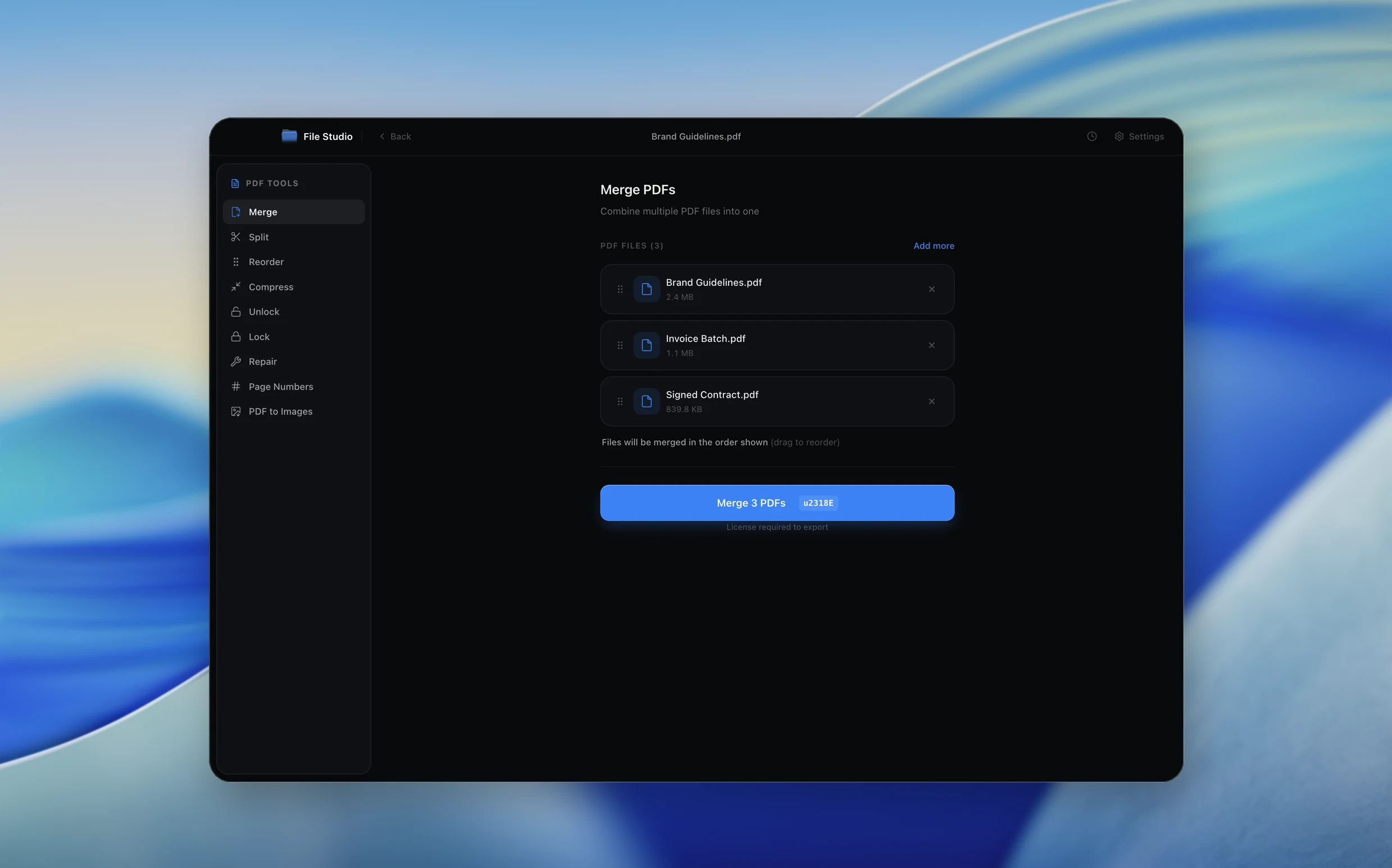
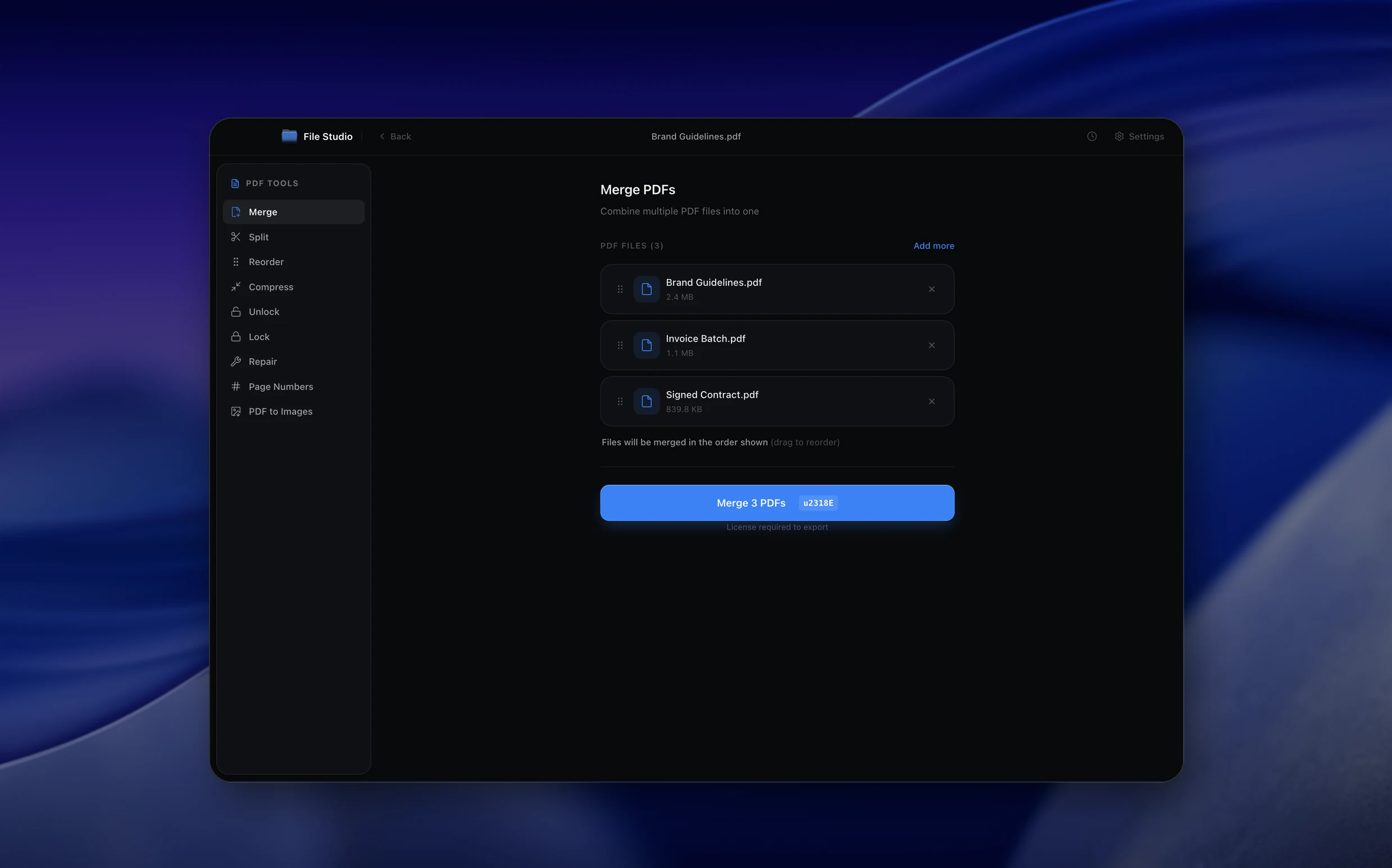
Real File Studio interface, shown in light and dark mode.
Understanding the PDF format for TIFF input
PDF (ISO 32000) is the de facto standard container for distributing scanned and rasterized documents. TIFF, by contrast, is the dominant format for capture: scanners, fax machines, document cameras, and high-end imaging devices typically write TIFF as their native output. Converting TIFF to PDF wraps the captured pages in a portable, signable, and searchable container without recompressing the image data when possible.
PDF supports several of the same compression schemes as TIFF, including FlateDecode (Deflate / ZIP), CCITTFaxDecode (Group 3 and Group 4 fax compression), DCTDecode (JPEG), and JPEG2000. This overlap means a TIFF-to-PDF converter can often pass through the original compressed image data byte-for-byte, producing a PDF that is essentially the same size as the source TIFF and contains identical pixel data. This is the gold standard for archival workflows because no quality is lost.
Multi-page TIFF files are particularly well-suited for PDF conversion because PDF's page-oriented structure mirrors the multi-IFD layout of TIFF. A 50-page scanned contract stored as a single multi-page TIFF becomes a 50-page PDF in one pass, with each TIFF page becoming a PDF page. The resulting PDF can be e-signed, OCR'd, redacted, and shared through document management systems that may not accept TIFF directly.
How it works
Convert TIFF to PDF in four simple steps.
The flow mirrors the main File Studio experience: install the app, drop in your files, pick the right tool, and export clean, ready-to-share output. All without sending anything to the cloud.
Install File Studio
Download the app, move it to Applications, and open it. No sign-ups or accounts required.
Add your TIFF files
Drag-and-drop your tiff files into the window or click to browse from disk.
Choose TIFF → PDF
Pick the dedicated tool, then adjust resolution, quality, and page range until the preview feels right.
Export & keep working
Select an output folder and run the conversion. Your originals stay untouched on your device.
Best practices for cleaner results
- ·Group related files into folders before converting so your output stays organized and easy to archive.
- ·Use higher resolution presets when you know the result will be printed, zoomed in, or reused in design tools.
- ·Keep an unedited copy of your original TIFF files for audits, record-keeping, or compliance workflows.
- ·Combine this tool with other File Studio actions like compress, merge, or split to streamline entire document pipelines.
Why File Studio
Built for trustworthy, everyday TIFF to PDF work.
You get precise control over the output, predictable file names, and a private workflow that keeps sensitive documents on your own machine.
Features tuned for this conversion
- ·Multi-page TIFF support, with each TIFF frame becoming a separate PDF page.
- ·Preserve original bit depth, color space, and resolution metadata.
- ·Optional compression tuning to balance PDF file size against image quality.
Why use File Studio for this conversion?
- ·Handle multi-page TIFF files, converting each frame into a PDF page.
- ·Maintain original scan resolution for legal and archival compliance.
- ·Process sensitive scanned documents without any network connection.
Real-world ways people use it
- ·Convert scanned legal discovery documents from TIFF stacks into searchable PDFs.
- ·Turn multi-page TIFF faxes into PDFs for modern document management systems.
- ·Prepare architectural or engineering scan archives as portable PDF files.
Settings guide
Understanding your conversion options
Pass-through Compression
Enable pass-through to embed TIFF strips directly into the PDF without recompression. Group 4 bilevel scans become CCITTFaxDecode streams, JPEG-in-TIFF becomes DCTDecode, and LZW becomes FlateDecode after a quick re-pack. Pass-through preserves quality and minimizes processing time.
OCR Layer Generation
Run OCR during conversion to add an invisible text layer behind each page so the PDF becomes searchable and copyable. Choose a language model matching the document language. Use a confidence threshold around 70 percent to balance recall and precision; lower thresholds capture more text but introduce errors.
Page Size and DPI
TIFF files store DPI in the XResolution and YResolution tags. The converter uses these to compute physical page dimensions in inches. If the tags are missing or wrong, override them manually (200 DPI for office scans, 300 DPI for archival, 600 DPI for fine reproduction).
Color Mode Conversion
Bilevel TIFF (1-bit) should remain bilevel in the PDF for maximum compression. Grayscale TIFF (8-bit) embeds as DeviceGray. RGB TIFF embeds as DeviceRGB or ICCBased RGB. CMYK TIFF can embed as DeviceCMYK for print workflows. Avoid forced color conversions that increase file size without benefit.
PDF/A Compliance
Enable PDF/A-1b, PDF/A-2b, or PDF/A-3b output if the result must satisfy long-term archival requirements. PDF/A mandates embedded fonts, no encryption, no JavaScript, and tagged color spaces. PDF/A-2 allows JPEG2000 compression, which is preferred for color archival scans.
Industry standards and requirements
In legal e-discovery, multi-page Group 4 TIFFs are routinely converted to PDF for attorney review even though TIFF remains the production format. The Bates numbering and metadata previously stored in load files (DAT, OPT) should be preserved in the PDF as page labels and document properties. Many review platforms (Relativity, Everlaw, Logikcull) accept either format but prefer searchable PDF for in-platform OCR and tagging.
For archival workflows, PDF/A-2 (ISO 19005-2) is the recognized standard for converting scanned TIFFs into a long-preservation format. National archives, university libraries, and corporate records departments typically specify PDF/A-2u (which mandates Unicode mappings for all text) so OCR'd content remains searchable for decades. Embedding a representation of the original scan metadata (device model, capture date, operator) as XMP is considered best practice.
In healthcare and medical records, scanned TIFFs of consent forms, lab reports, and external referrals are commonly converted to PDF for inclusion in electronic health record (EHR) systems. HIPAA does not mandate a specific format, but most EHR vendors expect PDF/A-1b or PDF/A-2b with embedded fonts and no encryption layer (encryption is applied at the storage level instead). Retention typically follows state law, ranging from 7 years to a patient's lifetime.
Troubleshooting
Common issues and how to fix them
Converted PDF is much larger than the source TIFF→
Pass-through mode is probably disabled, causing the converter to decode and re-encode each page. Enable pass-through, or verify that the TIFF compression scheme is supported by the converter's PDF writer. CCITT Group 4 and JPEG TIFFs benefit most from pass-through.
OCR text layer is misaligned with the visible page→
The OCR engine may have rotated or deskewed the page internally before recognition but written the text coordinates in the rotated frame. Disable auto-rotation in the OCR settings, or pre-rotate the TIFF with exiftool so the OCR engine and the PDF writer agree on orientation.
Multi-page TIFF only converts the first page→
The converter may not iterate through all IFDs in the TIFF file. Check that multi-page handling is enabled. Tools that rely on libtiff support multi-page natively; tools that wrap a single-page decoder may need a separate split-then-merge step.
Bilevel scans look gray or fuzzy in the PDF→
The converter likely upsampled the 1-bit TIFF to 8-bit grayscale before embedding. This wastes space and degrades the crisp black-and-white appearance of fax-style scans. Force the output to remain 1-bit and use CCITTFaxDecode compression to preserve the original look and size.
Pricing
Simple, fair pricing.
All tools included. No hidden fees. Processing stays on your device.
Yearly
For short-term projects.
- 1 year of updates
- Image, PDF, SVG, and spreadsheet tools
- Works on Mac & Windows
- All processing done on device
Lifetime
One purchase. Keep it forever.
- Unlimited conversions forever
- 1 year of major updates
- Image, PDF, SVG, and spreadsheet tools
- Watch Folders & Automation
- macOS Notch Drop Zone
- Works on Mac & Windows
Team & Bulk Pricing
Lifetime seats with volume discounts. More seats, bigger discount.
15
lifetime seats
You save
$60
15% off the individual price
Enterprise
50+ seats with custom pricing, centralized license management, and priority support.
FAQ
Frequently asked questions
Can File Studio handle multi-page TIFF files?→
Yes. File Studio reads every frame in a multi-page TIFF and converts each one into its own page in the output PDF, preserving the original page order.
Will the conversion reduce the quality of my scans?→
By default, File Studio embeds scan data at its original resolution. You can optionally apply light compression if you need a smaller PDF, but the default prioritizes quality preservation.
What TIFF compression types are supported as input?→
File Studio reads TIFFs with no compression, LZW, ZIP/Deflate, JPEG-in-TIFF, and other common compression schemes, so virtually any TIFF you encounter will work.
Can I merge multiple TIFF files into a single PDF?→
Yes. Drop in multiple TIFF files and File Studio will combine all their pages into one continuous PDF document.
Is this process offline?→
Entirely. All processing runs on your Mac or Windows PC with no internet required. Sensitive legal, medical, or financial scans never leave your device.
Does TIFF to PDF work with black-and-white scanned TIFFs?→
Yes. File Studio supports 1-bit (black and white), grayscale, and full-color TIFF input, converting each correctly into the output PDF.
Looking for something else? Explore more offline conversions with File Studio: