

macOS Preview alternative
When Preview is not enough: batch processing, conversions, and more.
macOS Preview is a surprisingly capable built-in app for viewing and lightly editing PDFs and images. It handles basic annotations, simple conversions, and image resizing. But when you need batch processing, PDF merging, format conversions like HEIC-to-JPG, or image compression, Preview runs out of steam. File Studio picks up where Preview leaves off.
Works 100% offline on both Windows and Mac.
macOS Preview
Requires internet and file uploads to work.
Why people use macOS Preview
macOS Preview is the built-in document and image viewer that ships with every Mac. It has been part of macOS since the early days of OS X, and most Mac users have used it at some point, even if they do not realize it by name. When you double-click a PDF, image, or screenshot on a Mac, Preview is the application that opens it. It is so deeply integrated into the operating system that many users think of it as part of the OS rather than a separate application.
Preview's capabilities are surprisingly robust for a free, bundled application. It can view PDFs and images, annotate PDFs with highlights, text notes, shapes, and signatures, crop and resize images, adjust image colors and levels, convert images between several formats on export, and perform basic PDF page management by dragging thumbnails between documents. For quick, one-off tasks, Preview is genuinely capable and conveniently available.
Where Preview falls short is in batch operations and advanced workflows. It processes one file at a time, so converting a folder of 200 HEIC photos to JPG requires opening each file individually and exporting it. Merging PDFs requires dragging page thumbnails between open documents, a process that is unintuitive and error-prone with more than two or three files. There is no dedicated compression tool, no WebP support, and no watermarking capability. Preview is a viewer with light editing features, not a file processing tool.
File Studio picks up where Preview leaves off. It handles the batch operations, format conversions, and PDF manipulation tasks that Preview either cannot do or makes cumbersome. Most Mac users will benefit from keeping both: Preview for quick viewing and one-off annotations, and File Studio for batch processing, PDF merging and splitting, image compression, and format conversions that Preview handles poorly or not at all.
The relationship between Preview and File Studio is complementary rather than competitive. Preview excels at the quick, single-file tasks that come up dozens of times a day: opening a PDF, signing a document, cropping a screenshot, or checking an image's dimensions. File Studio handles the heavier operations that Preview was never designed for: converting 200 HEIC photos, merging 15 PDF chapters into a book, compressing a folder of images for web deployment, or watermarking a batch of design proofs. Together, they cover the full spectrum of file tasks a Mac user encounters, from casual to professional.
Side-by-side comparison
File Studio vs macOS Preview
| Feature | macOS Preview | File Studio |
|---|---|---|
| Price | Free (included with macOS) | $29 one-time or $15/year |
| Batch processing | No (one file at a time) | Yes, process hundreds of files at once |
| Merge PDFs | Possible but cumbersome (drag thumbnails) | Dedicated merge tool with drag-and-drop reordering |
| Split PDFs | Manual (drag pages out one at a time) | Split by page ranges, individual pages, or file size |
| Image format conversion | Export to a few formats (JPG, PNG, PDF, TIFF) | JPG, PNG, WebP, HEIC, PDF, SVG, and more |
| Image compression | Basic quality slider on export | Dedicated compression with file-size targeting |
| Windows support | No (Mac only) | Yes, Mac and Windows |
| Watermarking | Not available | Yes, text and image watermarks |
Why switch
What you get with File Studio instead
Batch process entire folders of images or PDFs instead of opening files one at a time.
Proper PDF merge and split tools that are much easier to use than Preview's workarounds.
Convert to modern formats like WebP that Preview does not support.
Dedicated image compression with control over output quality and file size.
Cross-platform: use the same tool on Mac and Windows.
Watermarking, collage creation, and advanced image adjustments that Preview lacks.
Pricing
Preview is free because it comes with macOS, and for quick single-file tasks it is perfectly adequate. File Studio costs $29 and is worth it when you regularly need batch operations, PDF manipulation, format conversions, or image editing features that go beyond what Preview offers.
In-depth look
Feature breakdown: macOS Preview vs File Studio
PDF tools comparison
Preview can display PDFs, add annotations (highlights, text notes, shapes, signatures), and perform basic page management. Merging PDFs is possible by dragging thumbnail pages from one document window into another, but this workflow is manual and unintuitive, especially with multiple files. Splitting a PDF requires dragging individual pages out of the thumbnail sidebar, one at a time. There is no compression tool, no batch operations, and no conversion to image formats with fine-grained controls.
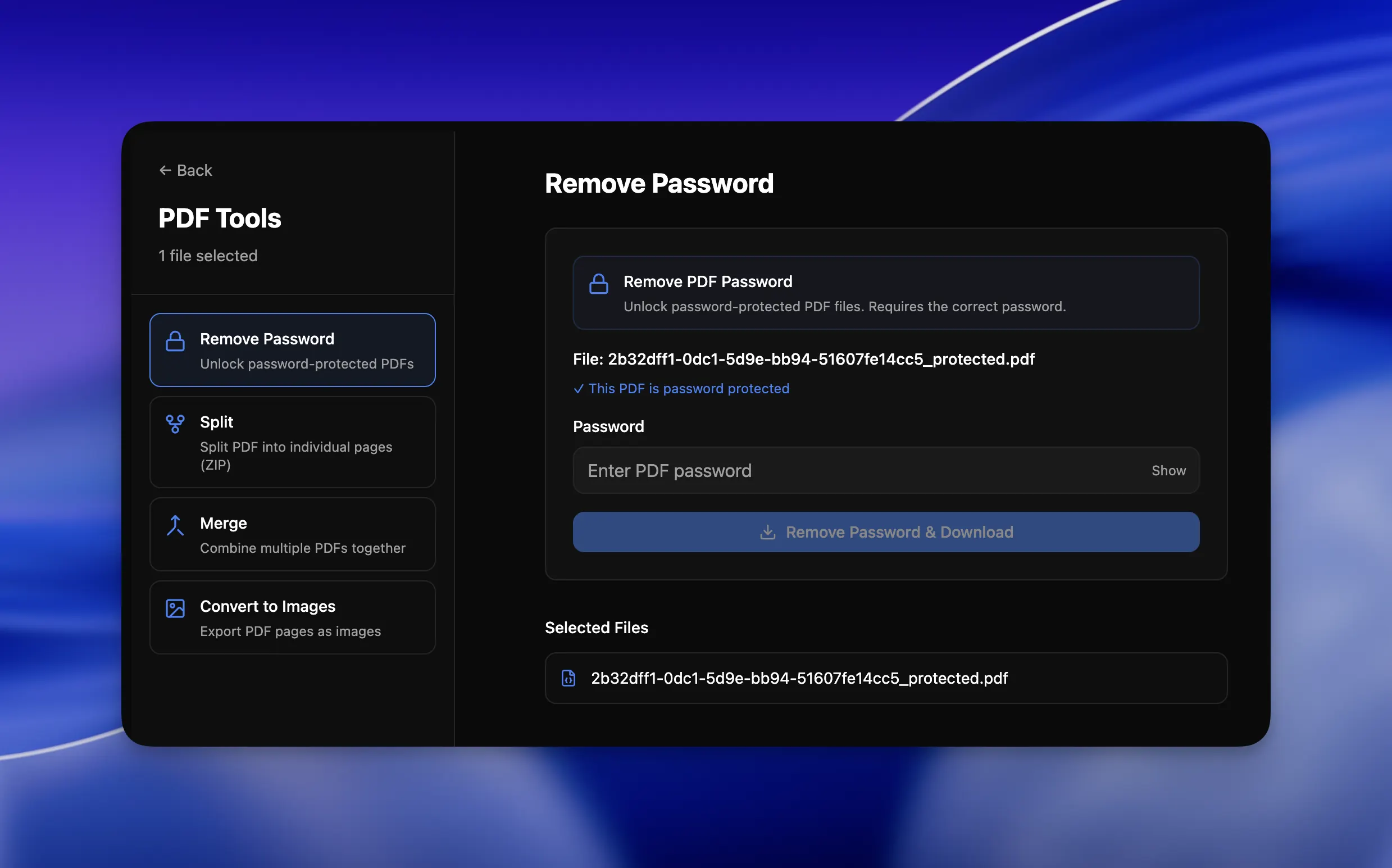
File Studio provides dedicated, purpose-built tools for each operation. The merge tool lets you drag in multiple PDF files, reorder them visually, and combine them with one click. The split tool offers page range selection, individual page extraction, and size-based splitting. The compression tool reduces file sizes with quality controls. PDF-to-image conversion includes DPI settings and format choices. Each tool is designed specifically for its task, which makes it faster and less error-prone than Preview's workarounds.
For viewing and annotating a single PDF, Preview is excellent and free. For any operation involving multiple files, batch processing, or structural PDF manipulation, File Studio is the right upgrade. The two tools complement each other rather than competing directly.
PDF compression is a notable gap in Preview's capabilities. Preview can export PDFs with a 'Reduce File Size' quartz filter, but the results are often over-compressed, with noticeable quality degradation in images and graphics. The compression is not adjustable, so you get whatever Apple's default filter produces, which is often too aggressive for documents that need to maintain visual quality. File Studio provides compression with adjustable quality settings, letting you choose the balance between file size reduction and visual fidelity based on each document's requirements.
Image handling
Preview can open and display most image formats, resize images, crop using a selection tool, adjust brightness, contrast, and color levels, and export to JPG, PNG, PDF, and TIFF. These tools work well for individual images. The main limitations are the lack of batch processing (every operation must be performed on one file at a time), no WebP support, limited HEIC handling, and no dedicated compression beyond a simple quality slider on export.
File Studio's image tools are designed for batch workflows. You can convert an entire folder of images between formats, compress a batch of photos with target quality settings, resize multiple images to consistent dimensions, add watermarks across a set of files, and create collages. The format support includes WebP and HEIC, which Preview handles incompletely. For Mac users who regularly process multiple images, File Studio eliminates the repetitive open-export-close cycle that Preview requires.
The most common scenario where Mac users outgrow Preview is HEIC-to-JPG conversion. iPhones save photos in HEIC format, and while Preview can open HEIC files, converting a batch of them to JPG for sharing or uploading requires processing each file individually. File Studio batch-converts an entire folder in seconds.
WebP support is another growing gap. WebP is the preferred image format for modern websites due to its superior compression ratios, but Preview has limited WebP support and cannot export to WebP format. File Studio handles WebP conversion natively, which is increasingly important for web developers and designers working on Mac. Similarly, File Studio's watermarking capability has no equivalent in Preview, which matters for photographers, designers, and content creators who need to protect their visual work before sharing it.
Privacy and data handling
Preview processes everything locally on your Mac. There is no cloud component, no account requirement, and no data collection related to file processing. From a privacy perspective, Preview is as good as it gets: files stay on your machine throughout every operation.
File Studio matches Preview's privacy model exactly. All processing is local, with no network communication during file operations. There is no difference in privacy between the two tools. The decision between them is purely about capabilities and workflow efficiency, not about data handling.
Both tools are excellent choices for privacy-conscious users. Preview is limited in what it can do, while File Studio extends those capabilities significantly. Neither tool compromises your file privacy in any way.
Honest take
What you give up by switching
- *Preview is free and pre-installed on every Mac, requiring no purchase or installation.
- *Preview's annotation tools for PDFs, including signatures, shapes, and highlights, are polished and convenient for quick markup.
- *Preview handles quick, one-off image viewing and light editing without any learning curve.
- *Preview integrates deeply with macOS, supporting Quick Look, Markup in Mail, and other system-level features.
- *File Studio requires a $29 purchase, which may not be justified if your needs are truly limited to single-file, occasional tasks.
- *Preview's built-in Markup toolbar provides quick access to annotation tools without leaving the viewing experience, which is more seamless for casual markup than switching to a separate application.
Decision guide
Which tool is right for you?
You need to quickly view, annotate, or sign a single PDF on your Mac
Use Preview. It is free, already installed, and handles single-file PDF annotation exceptionally well.
You need to batch-convert a folder of HEIC photos from your iPhone to JPG
Use File Studio. Preview cannot batch-convert files, so you would need to process each photo individually.
You need to merge multiple PDFs into a single document reliably
Use File Studio. Preview's merge workflow is cumbersome and error-prone, while File Studio's dedicated merge tool handles it cleanly.
You need image tools like WebP conversion, batch compression, or watermarking
Use File Studio. Preview does not support WebP, batch operations, or watermarking. File Studio covers all of these.
Pricing
Simple, fair pricing.
All tools included. No hidden fees. Processing stays on your device.
Yearly
For short-term projects.
- 1 year of updates
- Image, PDF, SVG, and spreadsheet tools
- Works on Mac & Windows
- All processing done on device
Lifetime
One purchase. Keep it forever.
- Unlimited conversions forever
- 1 year of major updates
- Image, PDF, SVG, and spreadsheet tools
- Watch Folders & Automation
- macOS Notch Drop Zone
- Works on Mac & Windows
Team & Bulk Pricing
Lifetime seats with volume discounts. More seats, bigger discount.
15
lifetime seats
You save
$60
15% off the individual price
Enterprise
50+ seats with custom pricing, centralized license management, and priority support.
FAQ
Frequently asked questions
Should I stop using Preview entirely?→
No. Preview is excellent for quickly viewing files, making simple annotations, and doing one-off image exports. Use Preview for quick tasks and File Studio when you need batch processing, merging, splitting, or features Preview does not have.
Can Preview merge PDFs?→
Technically yes, by dragging page thumbnails between documents. But it is manual, error-prone, and tedious with more than a few files. File Studio provides a dedicated merge tool where you drag in files, reorder them, and merge with one click.
Does Preview convert HEIC to JPG?→
Preview can export a single HEIC file to JPG using File > Export. But it does not support batch conversion, so converting a folder of iPhone photos requires opening each one individually. File Studio batch-converts entire folders.
Can Preview compress images for the web?→
Preview has a basic quality slider when exporting, but it does not offer targeted compression, WebP output, or batch optimization. File Studio provides dedicated compression tools with more control over the output.
Is File Studio worth it if I already have Preview?→
If you only occasionally view and annotate PDFs, Preview is sufficient. If you regularly batch-convert images, merge PDFs, or need formats like WebP, the $29 investment in File Studio pays for itself in time saved.
@ayysoni · February 25, 2026
Related File Studio tools you might find useful:
Compare File Studio with other tools: